
RemoveFrom.VideoRemove Subtitles From Video

AI Video Subtitle Remover

Remove Subtitles From Video

Remove subtitles from video with AI, including hardcoded subtitles, burned-in captions, and open captions. Auto Detect finds subtitle regions, while Select Area gives you exact control. AI video inpainting rebuilds the covered scene for a clean subtitle-free video without cropping or blur.

Video Preview

Upload a video to remove subtitles

Supports MP4, MOV, WEBM

Removal Settings

1. Method

AI detects hardcoded subtitles and captions, removes them across frames, and reconstructs the covered scene.

2. Resolution:

Subtitle Removal Results

See AI Subtitle Removal in Action

See subtitle removal across dialogue lines, short-form captions, and translated subtitles. AI clears the visible text and reconstructs the covered scene while preserving the original frame.

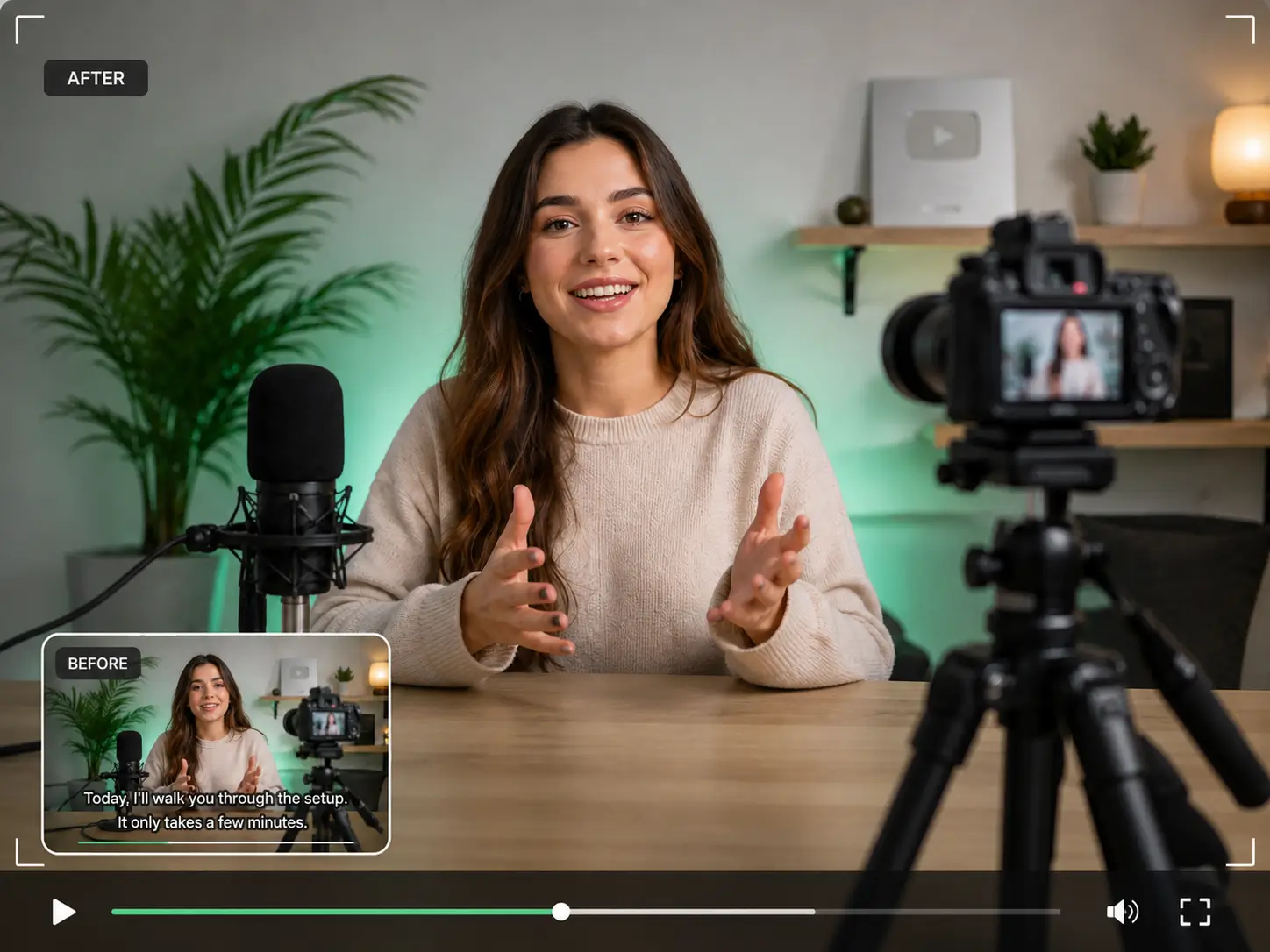
Before and after comparison of hardcoded dialogue subtitles removed from video

Hardcoded Dialogue Subtitles

Burned-in dialogue subtitles are removed from the lower frame and the covered background is reconstructed across the clip.

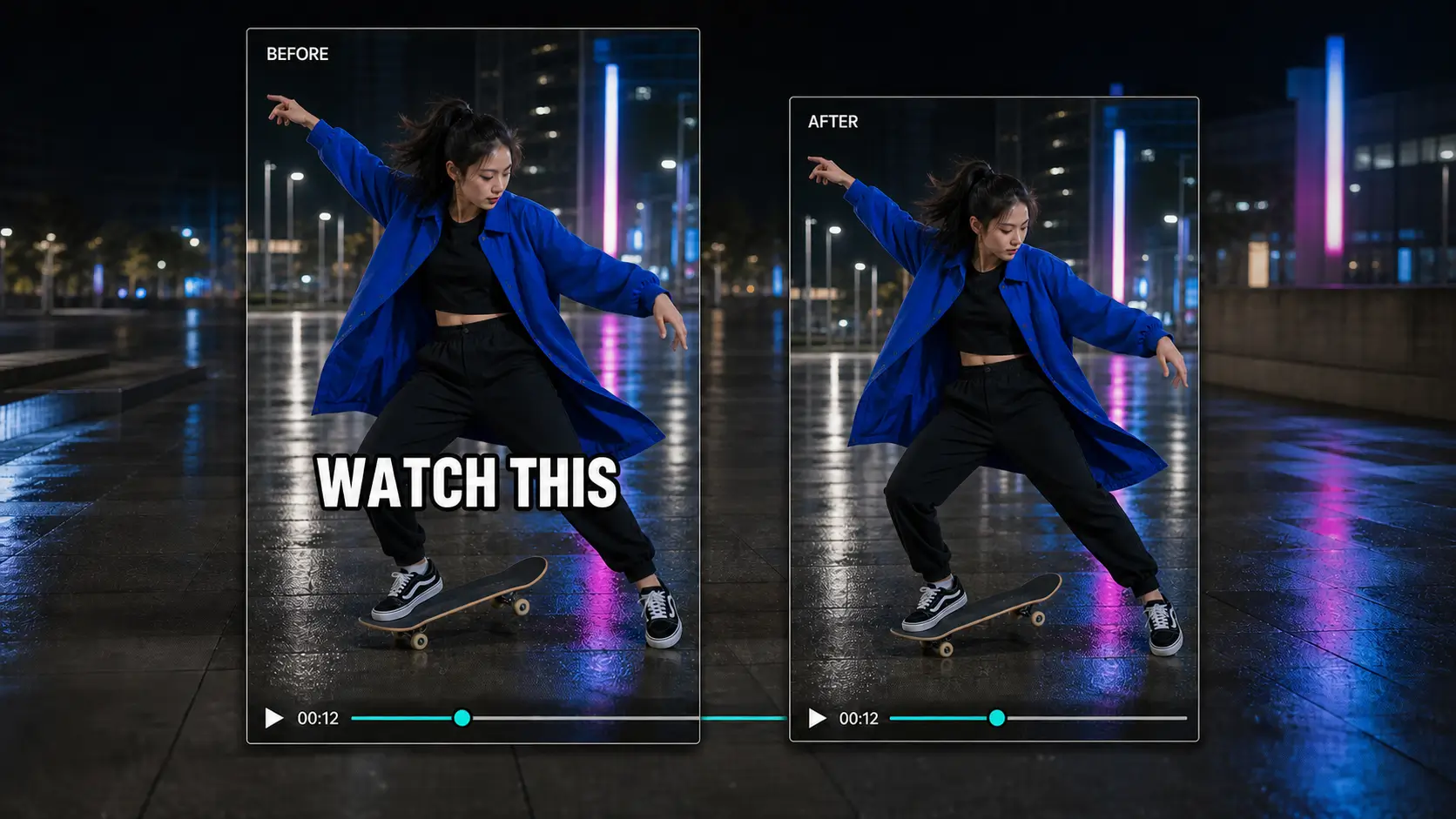
Before and after comparison of short-form social captions removed from video

Short-Form Social Captions

Large styled captions are cleared from vertical video while the subject, motion, and original composition remain intact.

Before and after comparison of translated burned-in subtitles removed from video

Translated Burned-In Subtitles

Translated subtitles rendered into the picture are removed so the footage is ready for new localization or re-captioning.

Clean Subtitle Removal

Remove Hardcoded Subtitles From Video Without Cropping or Blur

Hardcoded subtitles are rendered directly into video pixels. The AI subtitle remover clears the caption region and reconstructs the visual content behind it, preserving the original frame instead of cutting off part of the picture or covering subtitles with a blur bar.

Rebuild the Scene Behind Burned-In Subtitles

AI video inpainting uses surrounding visual information across frames to reconstruct the area hidden by burned-in subtitles. The subtitle text disappears and the covered scene is restored as part of the video image.

  • Remove burned-in subtitles and open captions
  • Reconstruct the covered background with AI video inpainting
  • Keep the full video frame without cropping

Remove Hardcoded Subtitles
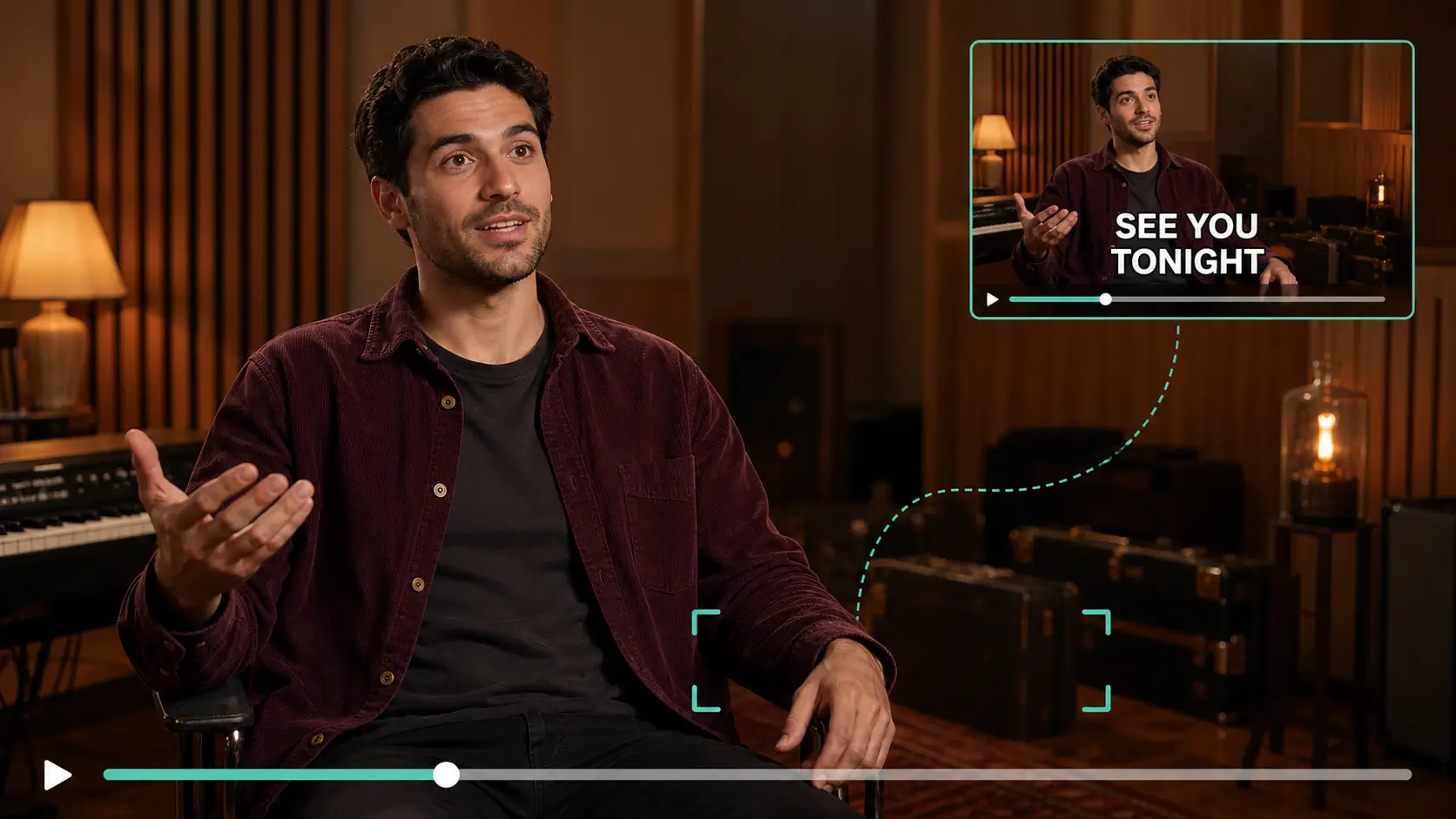
Hardcoded subtitle region prepared for AI subtitle removal

Automatic Detection and Precise Area Selection

Choose Auto Detect to identify visible subtitle regions across the video, or use Select Subtitle Area to define the exact caption zone yourself. Both workflows use the same AI removal process to clean subtitles and rebuild the covered background.

  • Automatic AI detection for visible subtitle lines
  • Manual area selection for positioned or styled captions
  • Frame-by-frame processing across the video timeline
Choose a Subtitle Area
Manual subtitle area selection for precise caption removal

Keep the Original Frame Without Cropping

Remove subtitles inside the existing video frame while preserving the original width, height, and composition. The subtitle area is cleaned directly, so subjects and scene detail near the bottom of the picture remain in the video.

  • Preserve the original video dimensions
  • Keep subjects and scene content near the frame edges
  • Remove subtitles without cutting away the lower picture
Remove Subtitles Without Cropping
Video subtitles removed while preserving the full original frame

Remove Subtitles Without Blur Bars or Patches

AI video inpainting reconstructs the pixels hidden behind the subtitle region instead of covering the text with a blur bar, solid rectangle, or visible patch. The cleaned area becomes part of the reconstructed scene.

  • Remove subtitle text instead of blurring it
  • Avoid solid bars covering the lower frame
  • Reconstruct visual detail behind the removed captions
Remove Subtitles Without Blur
Before and after comparison showing subtitles removed without a blur bar

Supported Subtitle Types

What Subtitles Can You Remove From Video?

The video subtitle remover targets captions that are visibly rendered into the video image, including fixed subtitle lines, open captions, and styled social-video captions.

Hardcoded Subtitles
Remove subtitle lines that are permanently baked into the video frames, including single-line and multi-line subtitles.
Burned-In Captions
Erase captions that are rendered into the picture and remain visible in every player because they are part of the video pixels.
Open Captions
Clean open captions that are always visible on screen, including dialogue captions, translated subtitles, and accessibility text.
Styled and Positioned Captions
Remove captions with custom fonts, outlines, backgrounds, or nonstandard positions by selecting the exact subtitle region.

AI Subtitle Removal

Why Use an AI Video Subtitle Remover?

RemoveFrom.Video combines subtitle detection, precise targeting, and AI video inpainting in one workflow built for hardcoded captions.

Automatic Subtitle Detection
AI scans the video for visible subtitle and caption regions and prepares them for removal across the timeline.
Precise Manual Selection
Select the exact subtitle area when captions use unusual positions, custom styling, or a specific region that needs focused cleanup.
Natural Background Reconstruction
AI video inpainting rebuilds the visual area hidden by subtitle pixels instead of placing a blur, patch, or solid bar over the text.
Keep the Original Frame
The subtitle region is cleaned inside the existing frame, so the video keeps its original composition without cutting away the bottom or sides.

Four-Step Workflow

How to Remove Subtitles From Video

Upload the video, choose how to target the subtitles, run AI removal, and download the cleaned result.

01
Upload Your Video
Upload an MP4, MOV, or WEBM video containing hardcoded subtitles or burned-in captions.
02
Detect or Select the Subtitle Area
Use Auto Detect for AI subtitle detection, or select the exact caption region manually for direct control.
03
Remove the Subtitles with AI
AI removes subtitle pixels across the affected frames and reconstructs the visual content behind the captions.
04
Preview and Download
Review the subtitle-free result, use the included free adjustments when you want to change the target, and download the cleaned video.

Know Your Subtitle Type

Hardcoded vs. Soft Subtitles

Hardcoded subtitles are part of the video picture and require visual removal. Soft subtitles exist as a separate subtitle file or stream and are removed from the subtitle track instead of the video pixels.

Use AI Removal
Hardcoded / Burned-In Subtitles

These subtitles are rendered directly into the video frames. RemoveFrom.Video erases the visible caption pixels and reconstructs the covered scene.

  • Rendered directly into video pixels
  • Always visible and cannot be switched off
  • Removed with AI subtitle inpainting
Remove the Subtitle Track
Soft Subtitles

These subtitles are stored separately from the picture as a file or subtitle stream. Disable or remove that track without altering the video image.

  • SRT, VTT, ASS, or embedded subtitle streams
  • Can be enabled or disabled in a player
  • Removed from the subtitle track instead of the video frame

Common Workflows

When Should You Remove Subtitles From Video?

Create a clean video source before translating, redesigning captions, updating old content, or rebuilding an authorized master copy.

Re-Caption Videos in a New Language
Remove old burned-in subtitles before adding translated captions for a new audience or localization workflow.
Restyle Existing Captions
Clear old captions from your footage before replacing them with a new font, size, position, animation, or subtitle design.
Update Outdated Video Content
Remove outdated captions from tutorials, presentations, product videos, and archived footage before publishing an updated version.
Recover Clean Source Footage
Create a subtitle-free copy of footage you own or are authorized to edit when the original clean source is no longer available.

Remove Subtitles From Video FAQ

Answers about hardcoded subtitles, burned-in captions, automatic detection, area selection, background reconstruction, supported formats, and subtitle tracks.

Remove Subtitles From Your Video

Upload your video and use AI to remove hardcoded subtitles and burned-in captions while reconstructing the covered background.