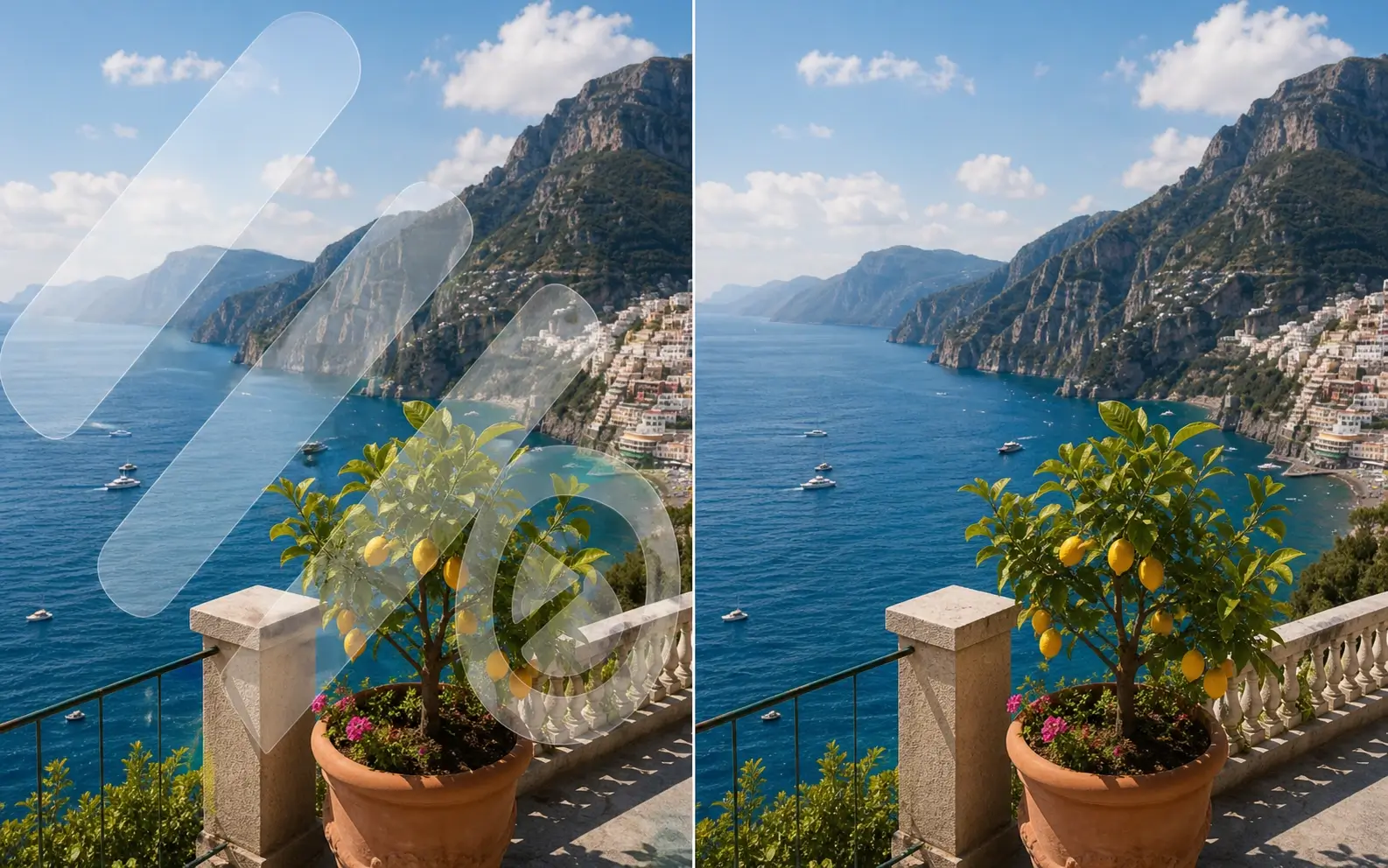
Start From a Clear Frame
01Choose a frame where the complete object and its edges are easy to see.
AI Video Object Remover
Erase unwanted people, moving objects, clutter, wires, and other distractions from your footage. Select what should disappear, and AI tracks it across frames while rebuilding the background for a clean, natural result.
Upload a Video to Remove an Object
MP4, MOV, or WEBM · Up to 100 MB / 5 seconds / 720p.
Select the target by clicking it or describing it in a few words.
Pause on a clear frame, then click the target.
Generate Removal Area
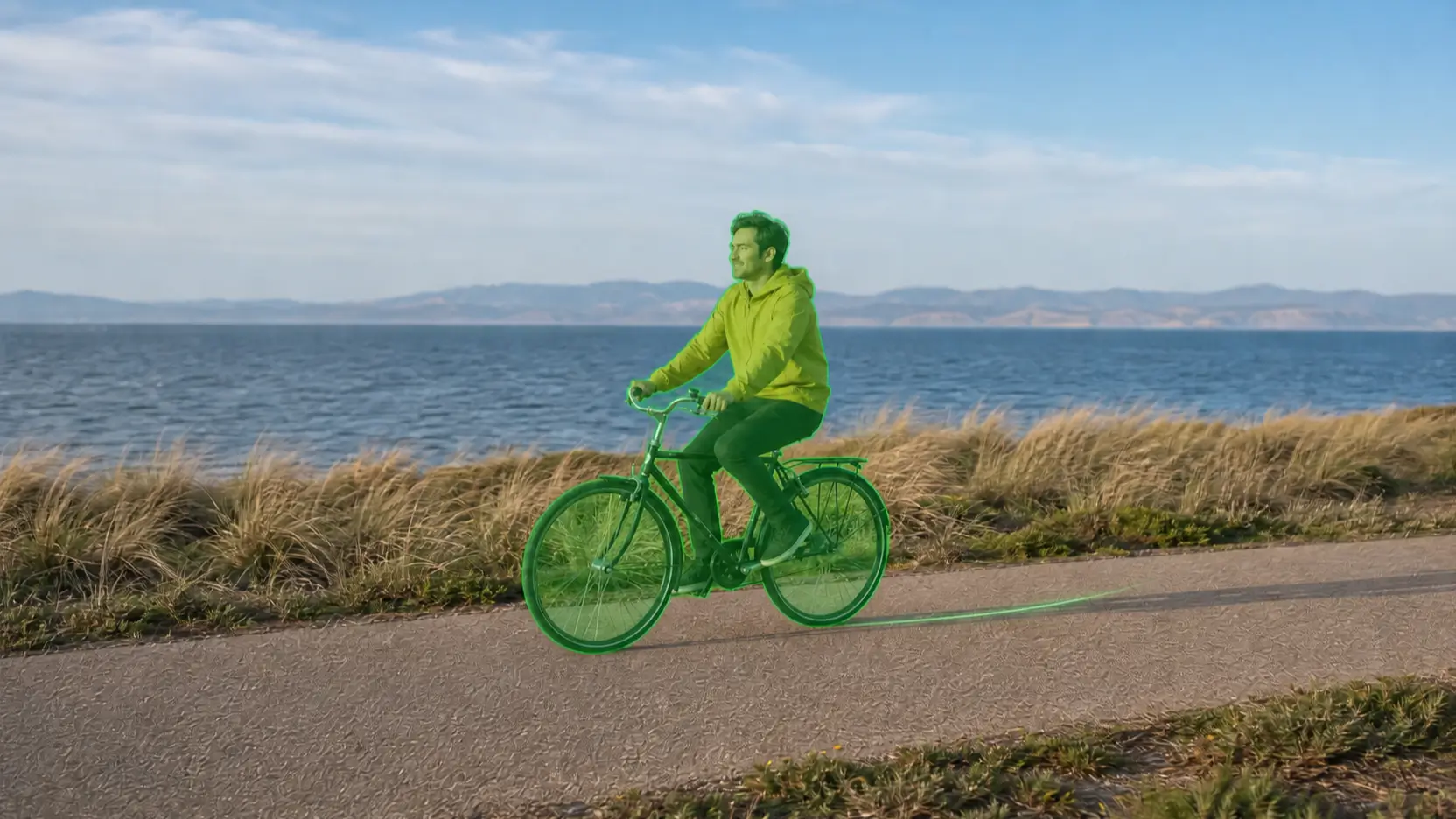
AI creates and tracks the highlighted area that will be removed.
Remove Object
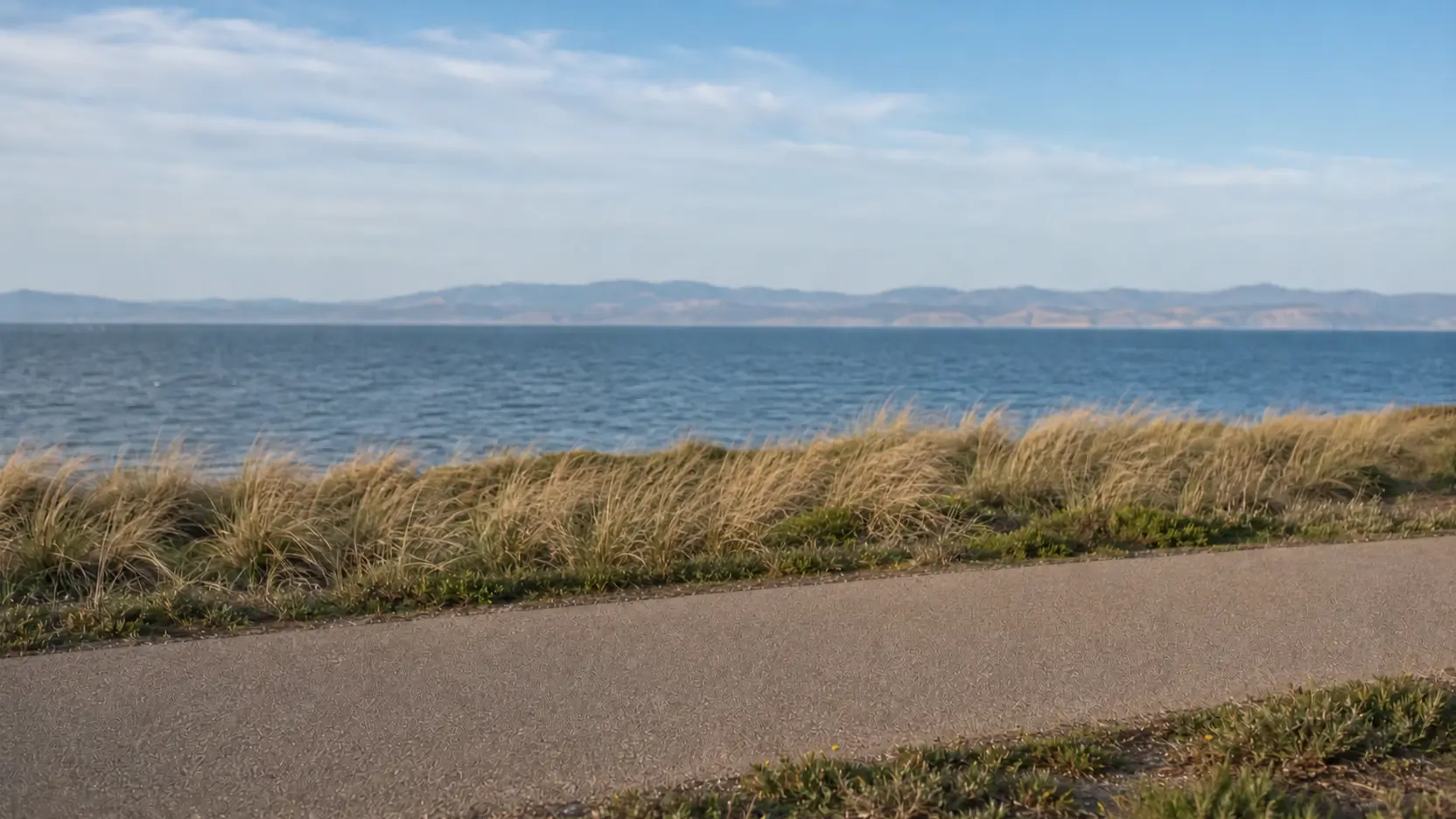
After reviewing the removal area, remove the object and rebuild the hidden background.
Before and After
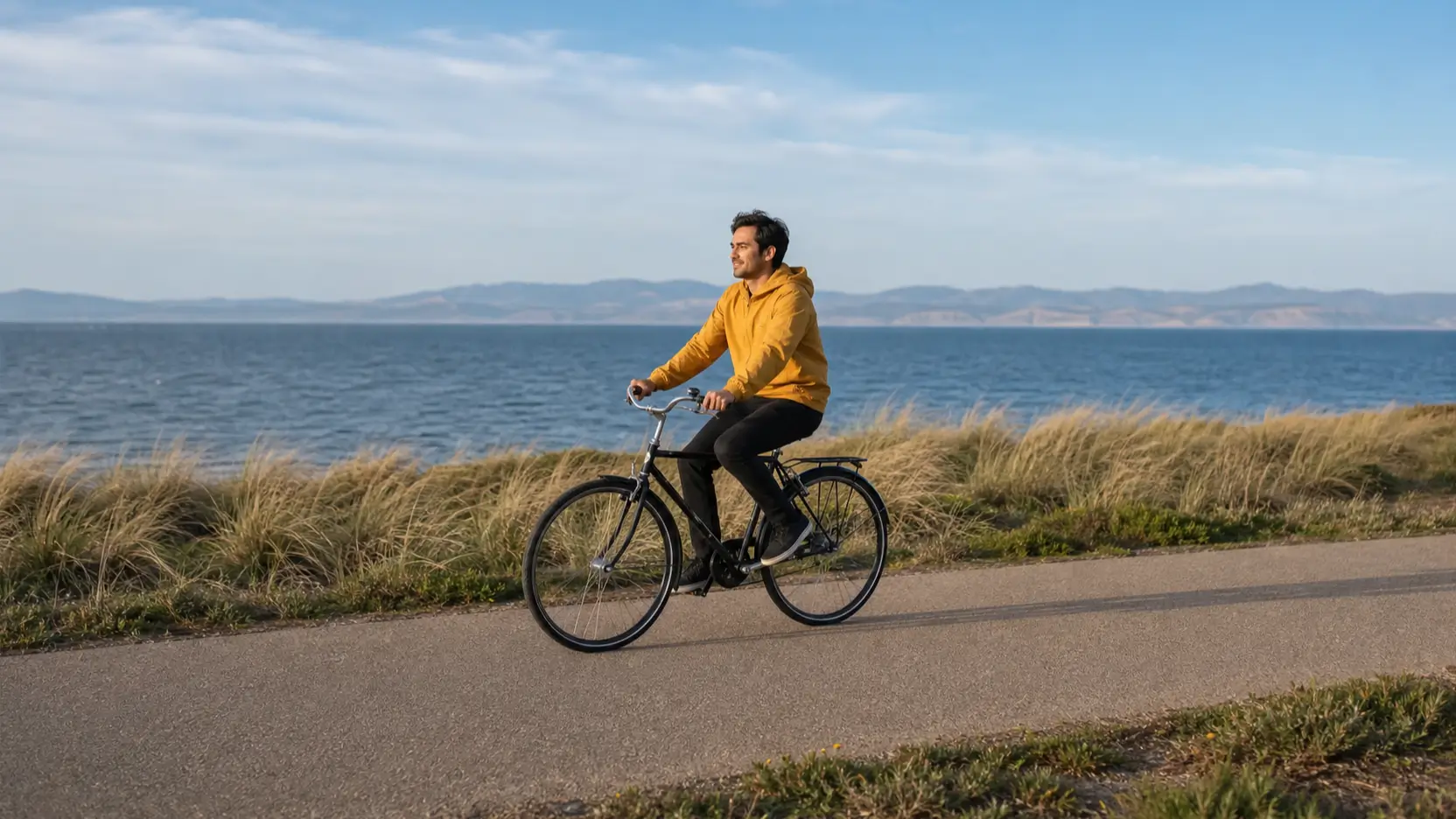
Compare the original clip, selected area, and cleaned result to see how AI removes an object from a video while tracking movement and reconstructing the scene across frames.
Remove a stranger or tourist walking through the background while keeping the main subject and surrounding scene intact.
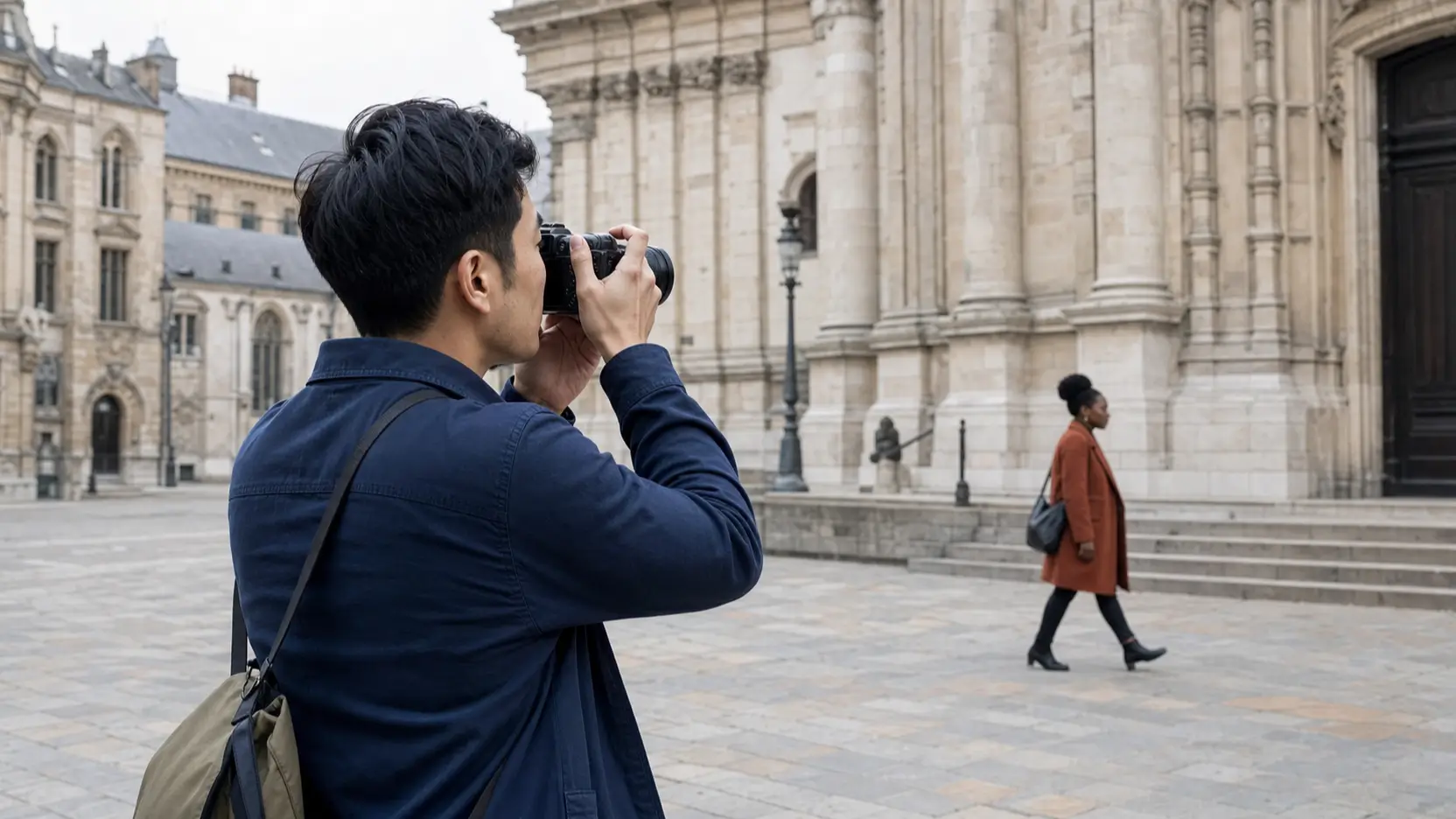
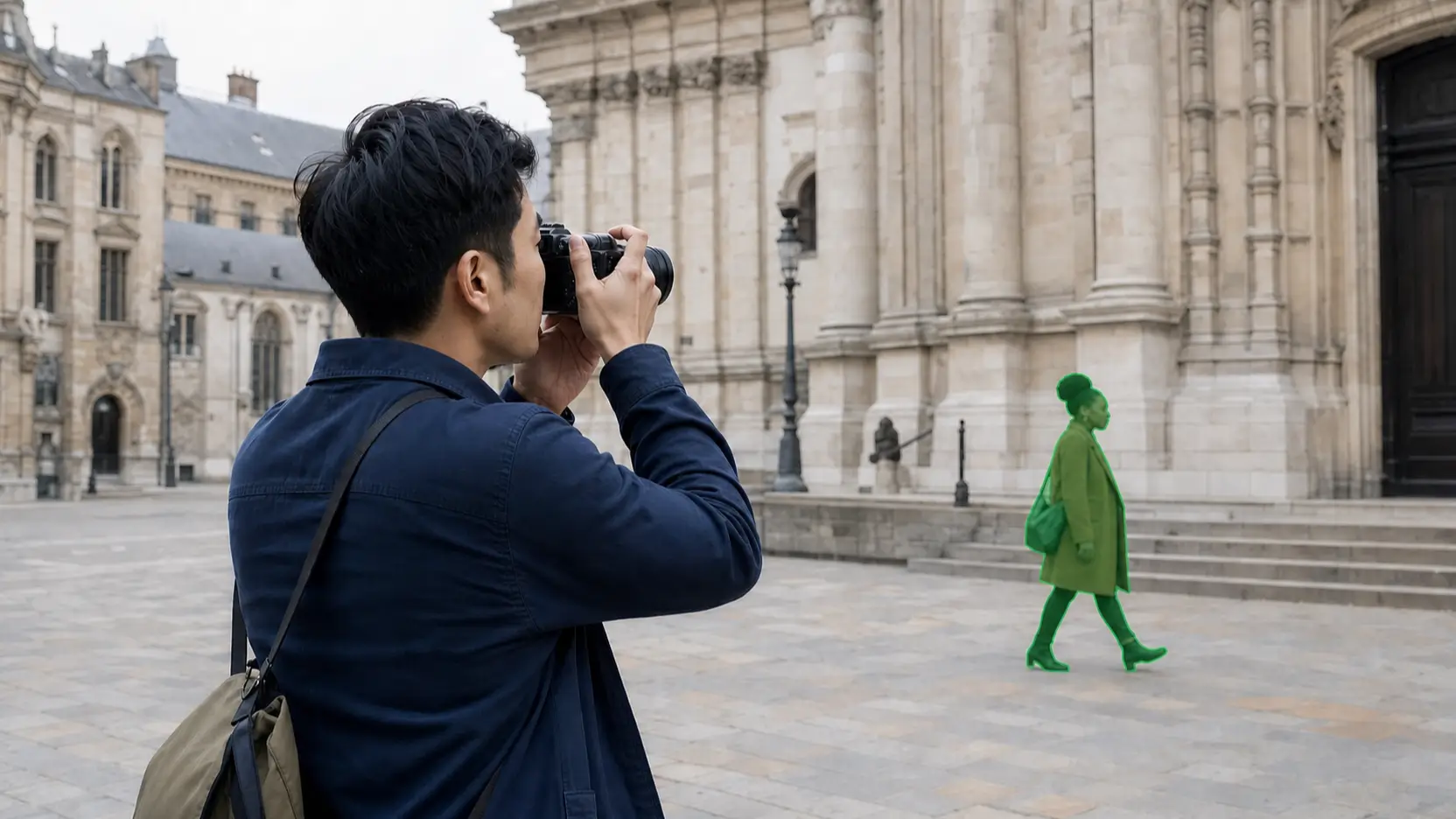
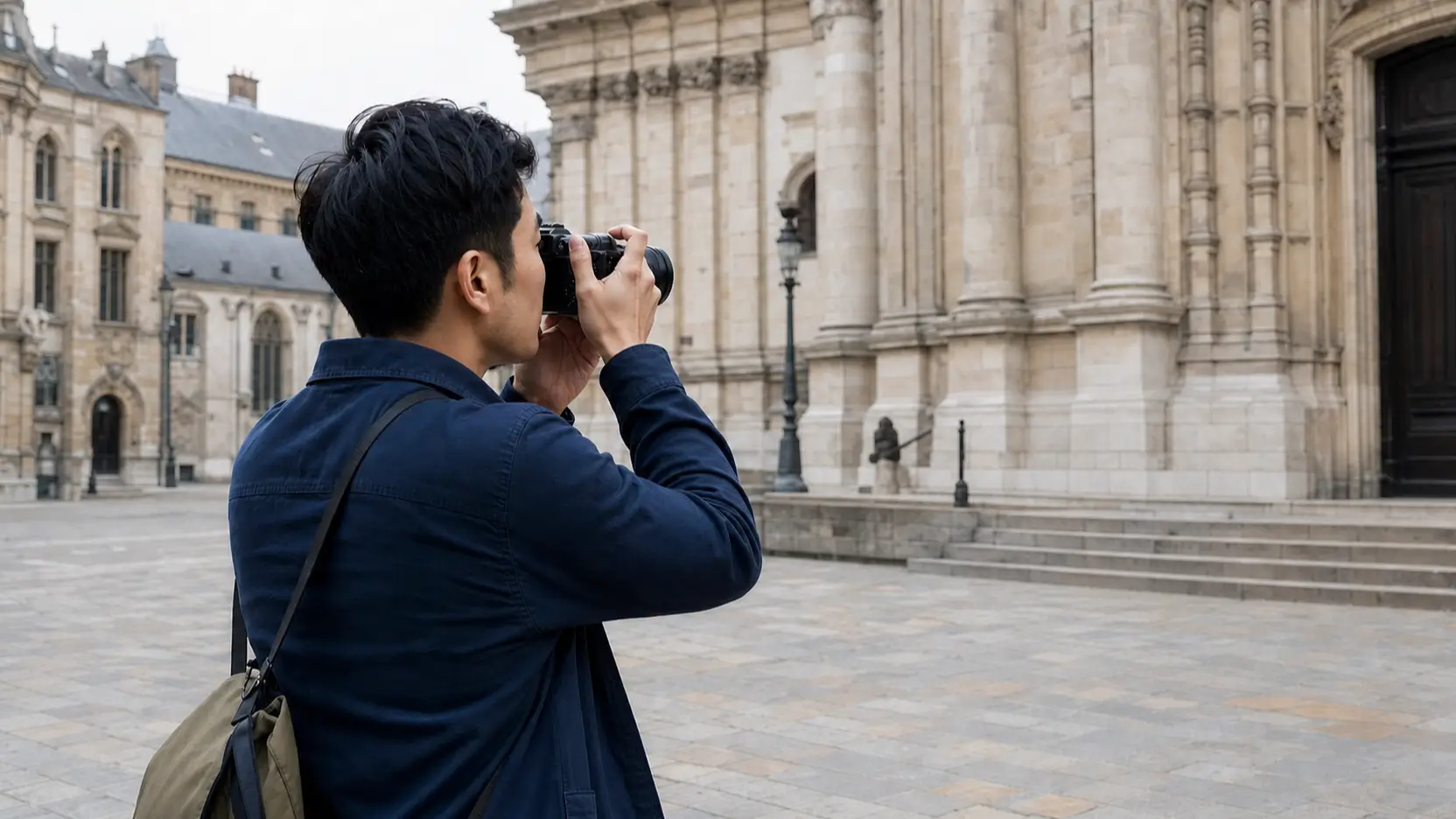
Erase cups, cables, packaging, tools, or other objects that distract attention from the product.



Select a bicycle, vehicle, animal, or other moving element and let AI track it through the clip.
Remove More Than Watermarks
Use AI to remove an unwanted person or object from a video, including production equipment, clutter, and other distracting elements, without cropping the original footage.
Simple Workflow
Select the unwanted object once and let AI handle the tracking and background reconstruction.
Motion-Aware Removal
Remove an object from a video whether it stays in one place, moves through the scene, or shifts as the camera moves.
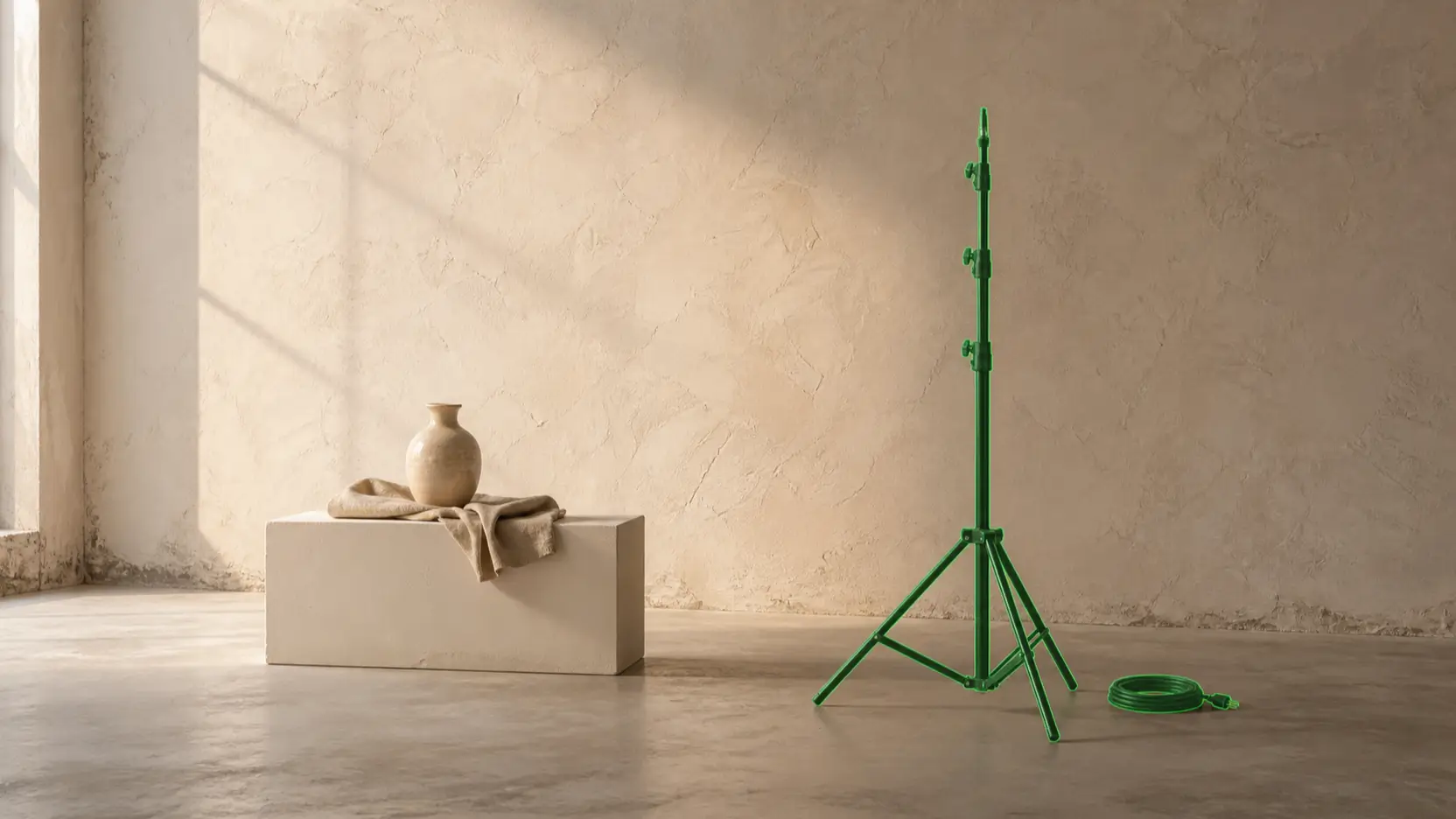
Erase signs, bins, props, cables, equipment, and other objects that remain in one place, even when the camera moves around them.
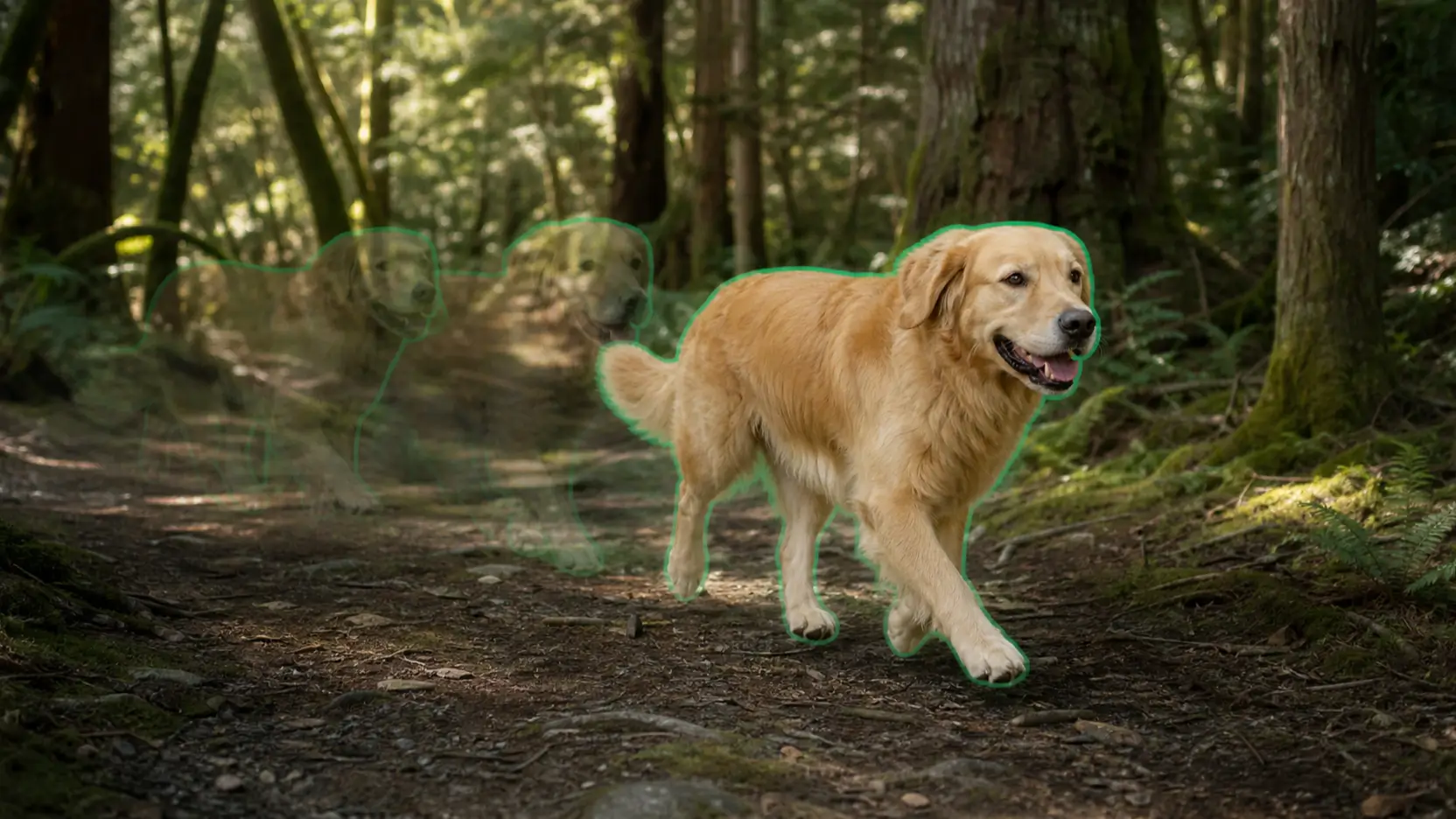
Select a person, vehicle, animal, or other moving subject and let motion-aware tracking follow it through the clip.
Cleaner Video Inpainting
Instead of covering the selected area with a fixed blur, AI analyzes nearby frames and rebuilds the hidden part of the scene for a cleaner, more natural-looking result.
Made for Real Footage
Explore practical ways to remove unwanted objects from a video without reshooting, from travel clips and product footage to real estate and creator content.
Get a Cleaner Result
For better results when removing an object from a video, start with a clear frame and make the target easy for AI to identify and track.
Choose a frame where the complete object and its edges are easy to see.
Start with one point inside the main body of the object. Add more Remove or Keep points only when the selection needs correction.
Trim long footage to the section where the unwanted object appears before processing.
When using a prompt, mention one target and add details such as its color, position, clothing, or movement.
Fast movement, heavy motion blur, reflections, complex shadows, and overlapping subjects may require additional Remove or Keep points.
More Video Cleanup Tools
Use a dedicated tool when the unwanted element is text, a watermark, a logo, or the entire background.
FAQ
Answers about how to remove an object from a video, track moving targets, rebuild hidden backgrounds, and get cleaner results.
Upload your footage and mark the object you want to remove. AI tracks the target across frames and rebuilds the scene for a clean, natural-looking result.