RemoveFrom.VideoRemove Person From Video

AI Video Person Remover

Remove Person From Video

Remove a specific person from video while keeping the people and scene you want. AI tracks the selected person across frames and reconstructs the hidden background for a clean, natural result without cropping or fixed blur patches.

Your Video

Upload a Video to Remove a Person

MP4, MOV, or WEBM · Up to 100 MB / 5 seconds / 720p.

Select the Person to Remove

Select the person by clicking them or describing them in a few words.

Points: 0

Pause on a clear frame, then click the person.

Two-step AI processing

  1. 1

    Generate Removal Area

    AI creates and tracks the highlighted area around the person that will be removed.

  2. 2

    Remove Person

    After reviewing the removal area, remove the person and rebuild the hidden background.

Person Removal Results

See AI Person Removal in Action

See how a selected person is removed from travel, social, and everyday footage while nearby people, the original framing, and the surrounding scene stay intact.

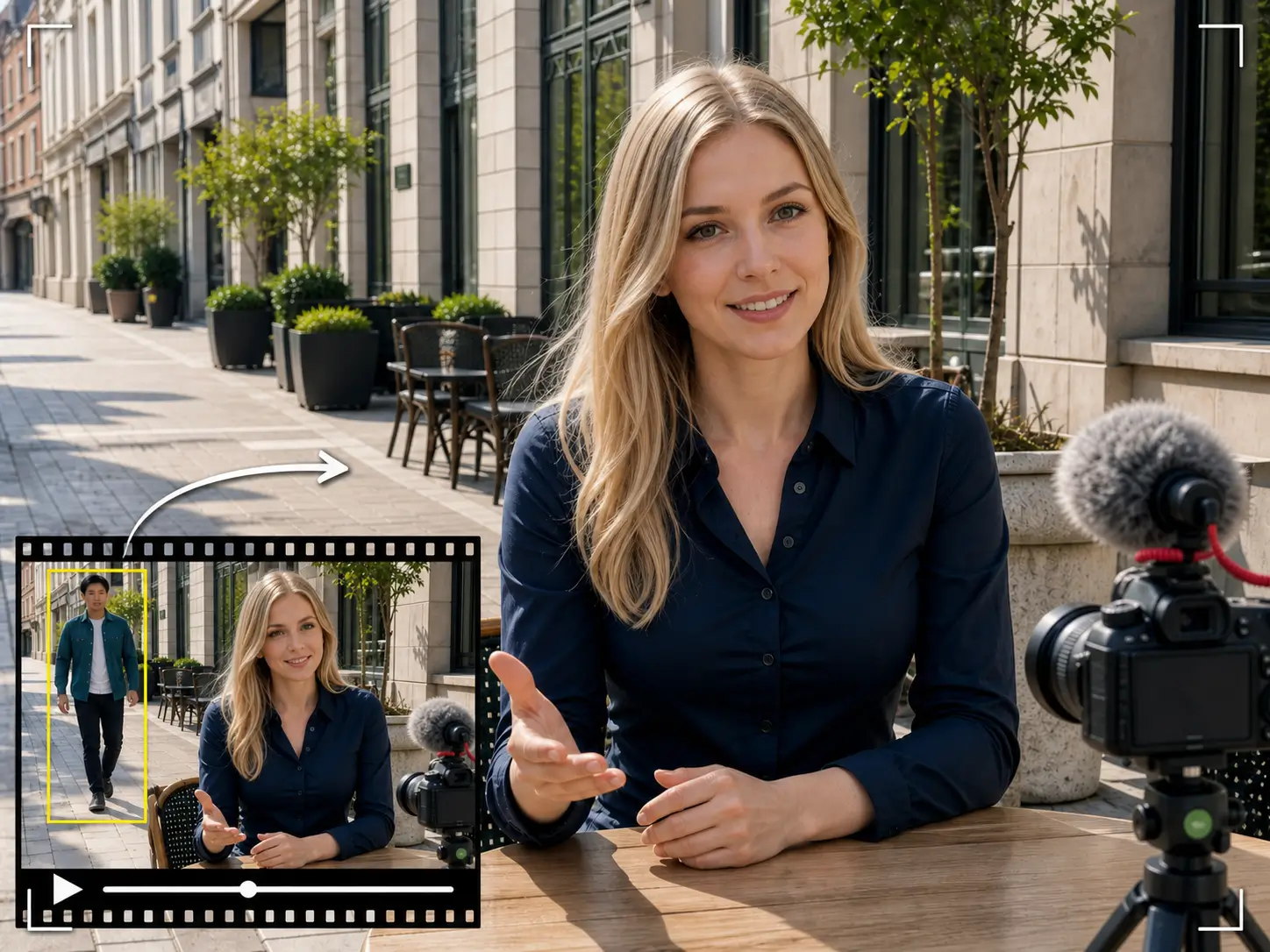
Outdoor cafe video comparison showing a teal-jacketed background passerby selected in the enlarged inset and removed from the clean interview result

Remove a Background Passerby

Remove someone walking behind the main subject and reconstruct the scene where the person previously appeared.

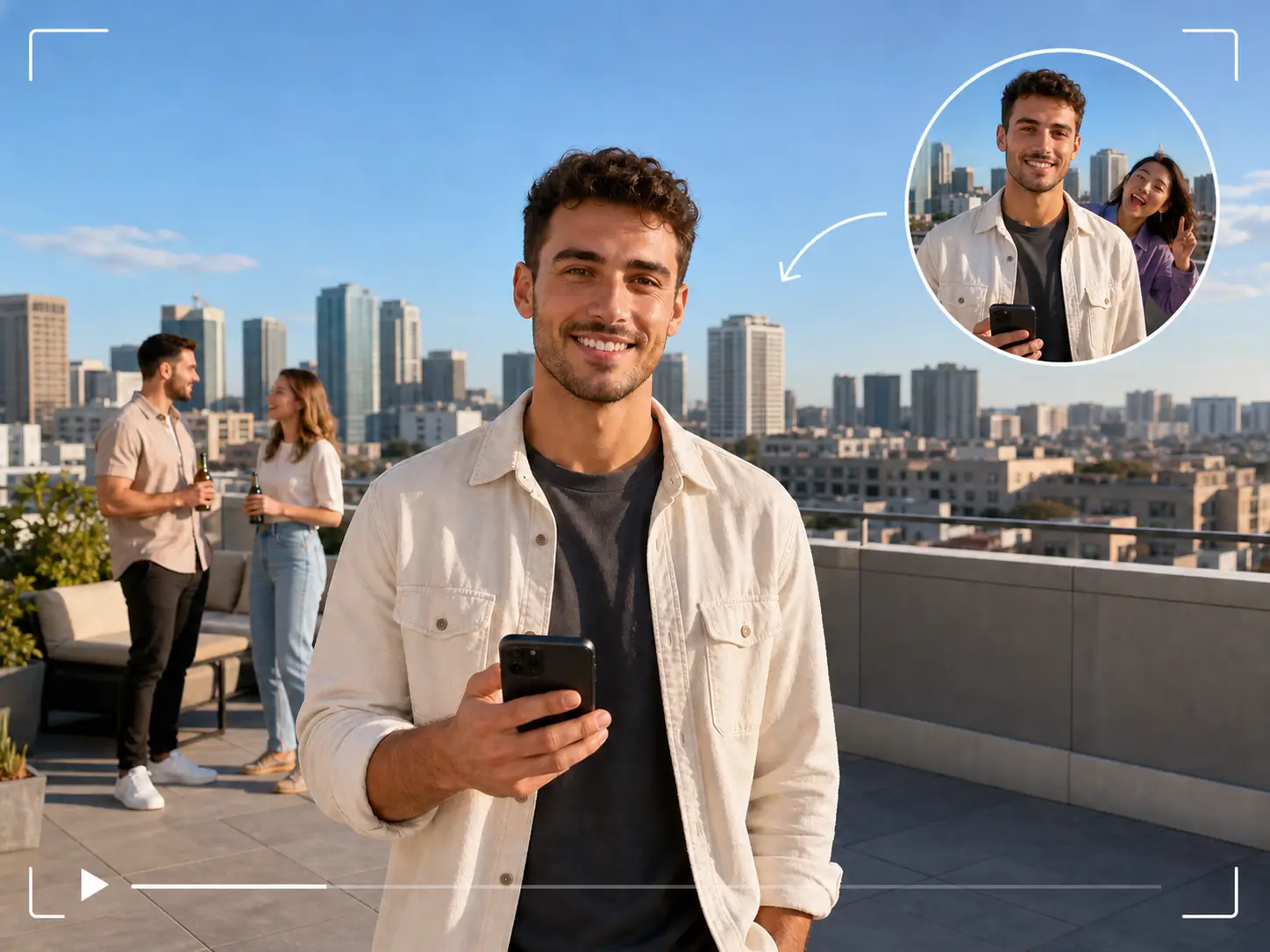
Rooftop video comparison showing a photobomber in the circular inset and removed from the clean result

Remove a Photobomber

Erase an unexpected person from the shot while keeping the intended subject and original composition intact.

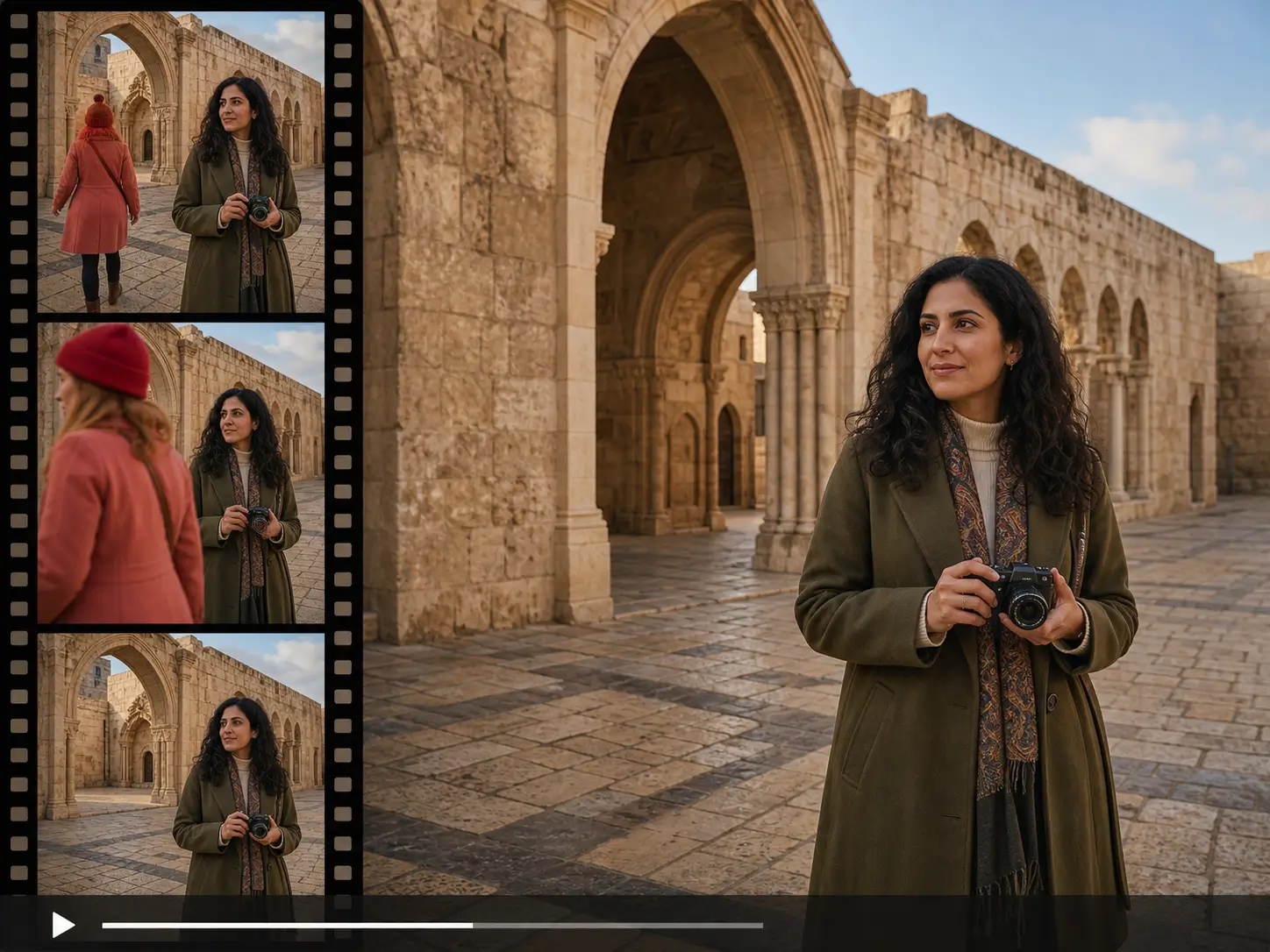
Travel video filmstrip showing a tourist blocking a stone arch and the restored scene after removal

Remove a Tourist From Travel Footage

Clean a distracting tourist from a landmark, street, or scenic video and restore the background they were covering.

Precise Person Removal

Remove One Person, Keep the Rest of the Scene

Target the person you want to remove without clearing everyone from the video. AI follows the selected person while Remove and Keep points help protect nearby people and important scene details.

Choose Exactly Who Should Disappear

Select the unwanted person directly on a clear frame or describe them by clothing, position, appearance, or movement.

  • Click the person you want to remove on a clear video frame.
  • Describe a single target when text selection is more convenient.
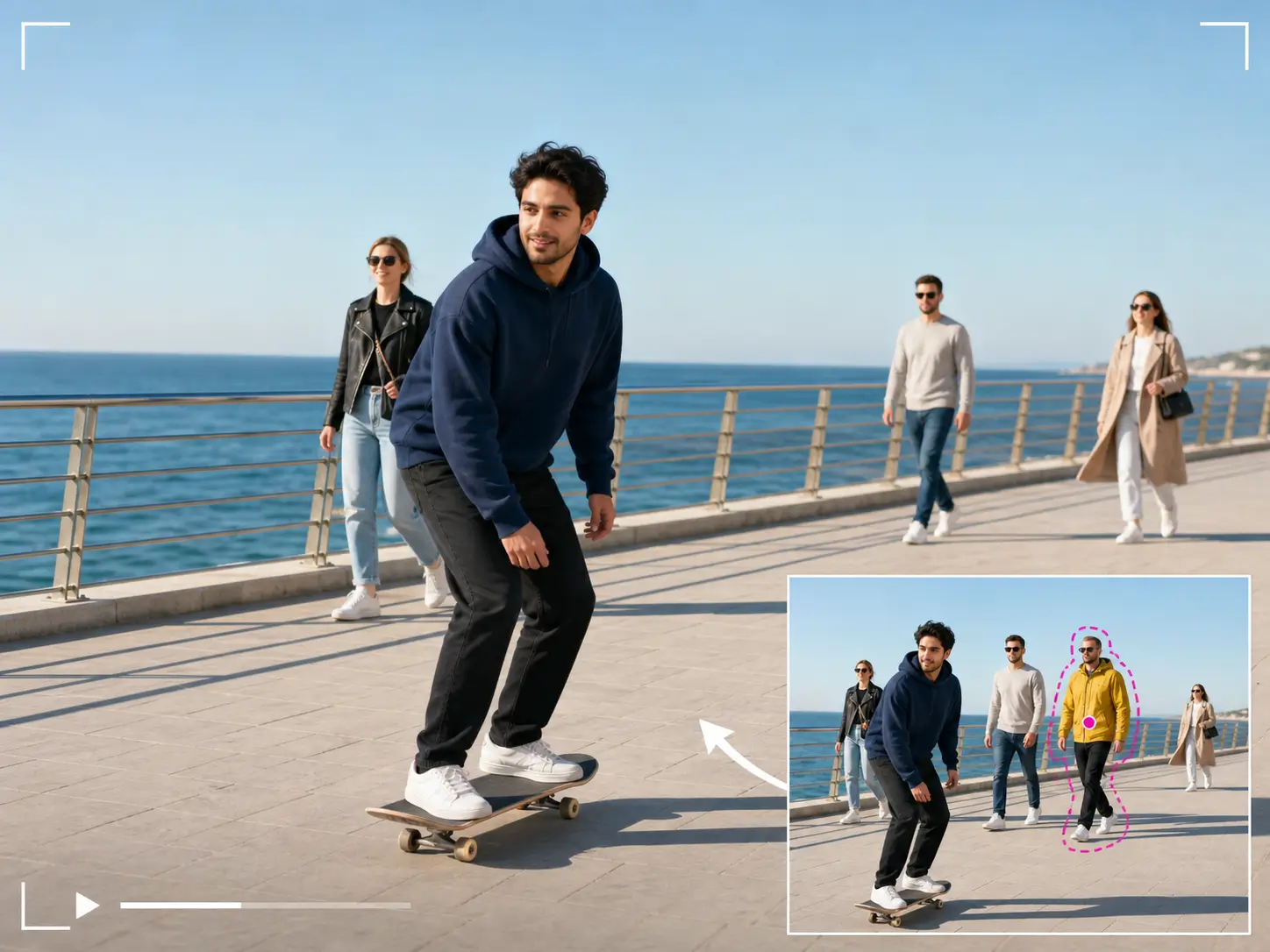
Coastal video comparison showing a yellow-jacketed target selected in the inset and removed from the clean result

Keep Nearby People and Scene Details

Review the tracked removal area before final processing and refine it when the target is close to people or details you want to keep.

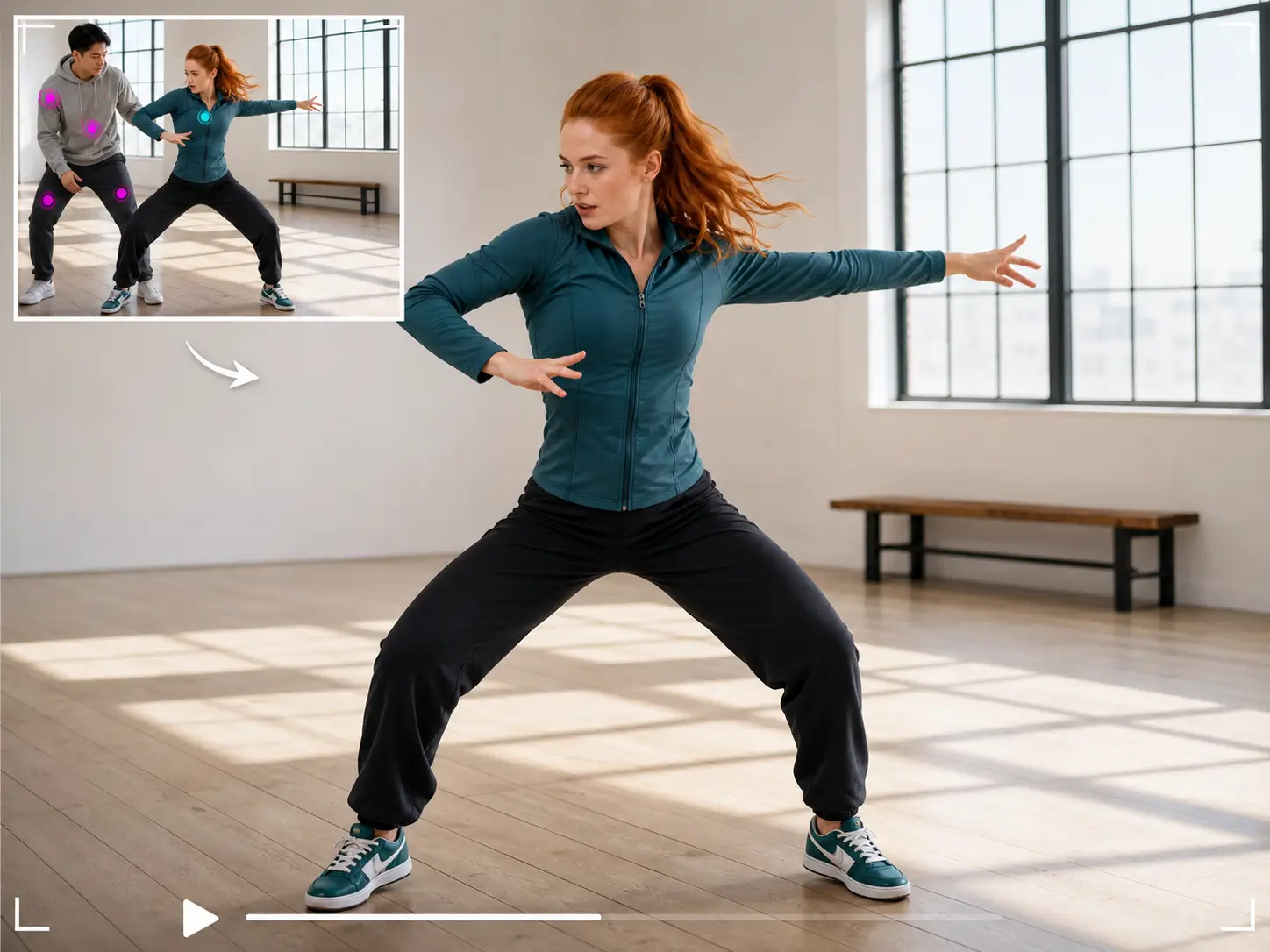
  • Add Remove points to include parts of the target that were missed.
  • Add Keep points to protect nearby people and important background details.
Dance video comparison showing Remove and Keep points in the inset and the selected man removed while the woman stays

Person Tracking

Track the Selected Person Across the Video

Once you choose the target, AI follows that same person as they move through the scene, change size, or shift with the camera.

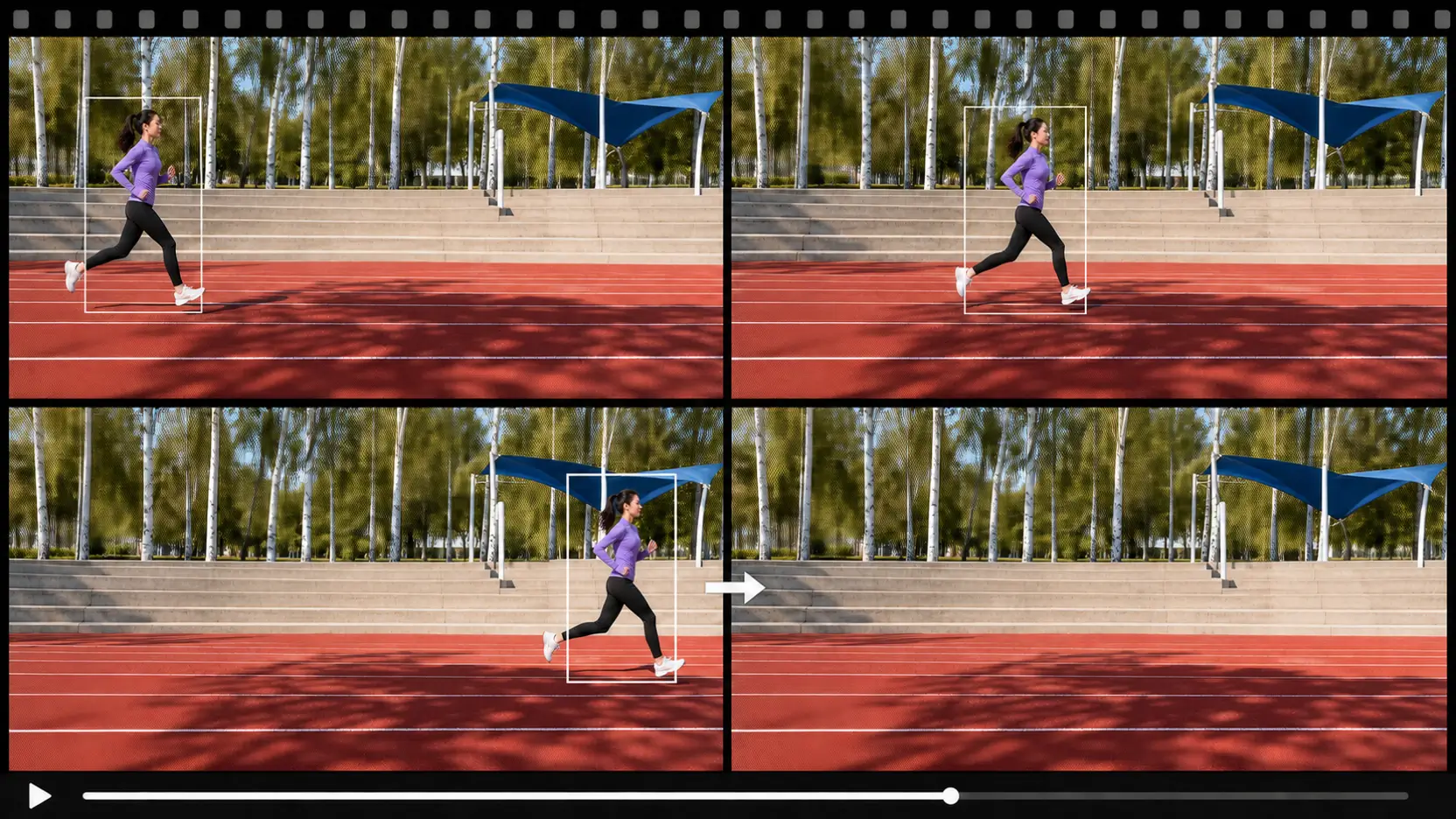
Fixed-camera tracking frames show a violet-clad runner crossing a city park track before the clean result removes her and restores the lane lines
Follow the Person as They Move

Track the same person as they walk behind the main subject, cross the frame, or move closer to and farther from the camera.

WalkingCrossing the frameChanging size
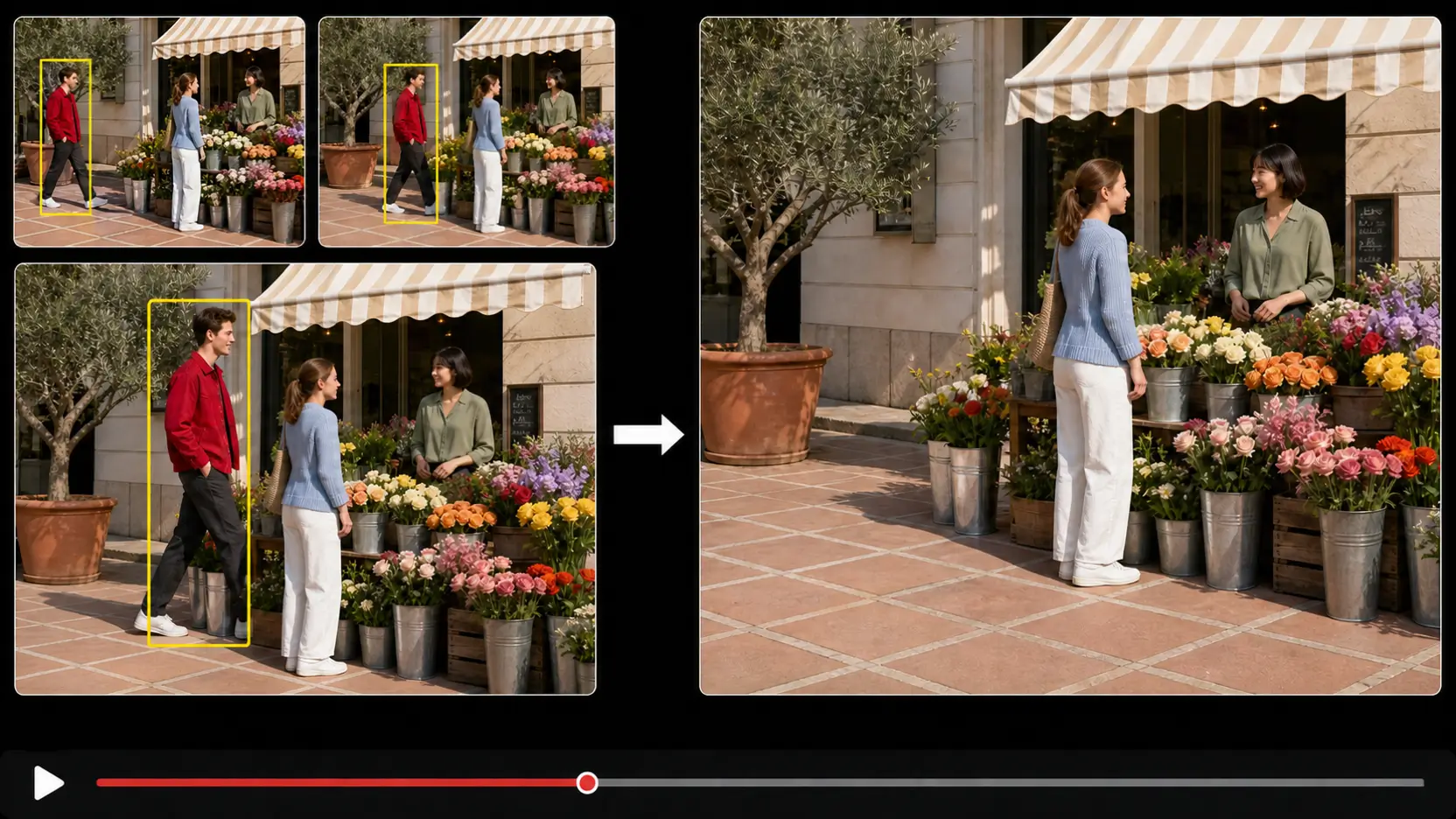
Camera-pan frames track a red-jacketed passerby through a flower market before the clean result removes him while keeping the florist and customer unchanged
Maintain the Same Target Through Camera Motion

Keep tracking the selected person as the camera pans, the framing shifts, or the target passes close to other people.

Camera pansPartial occlusionNearby people

Scene Reconstruction

Rebuild the Scene After Person Removal

After the selected person is removed, AI reconstructs the visual area they covered so the shot keeps its original framing instead of relying on a crop or fixed blur patch.

Restore the Hidden Background

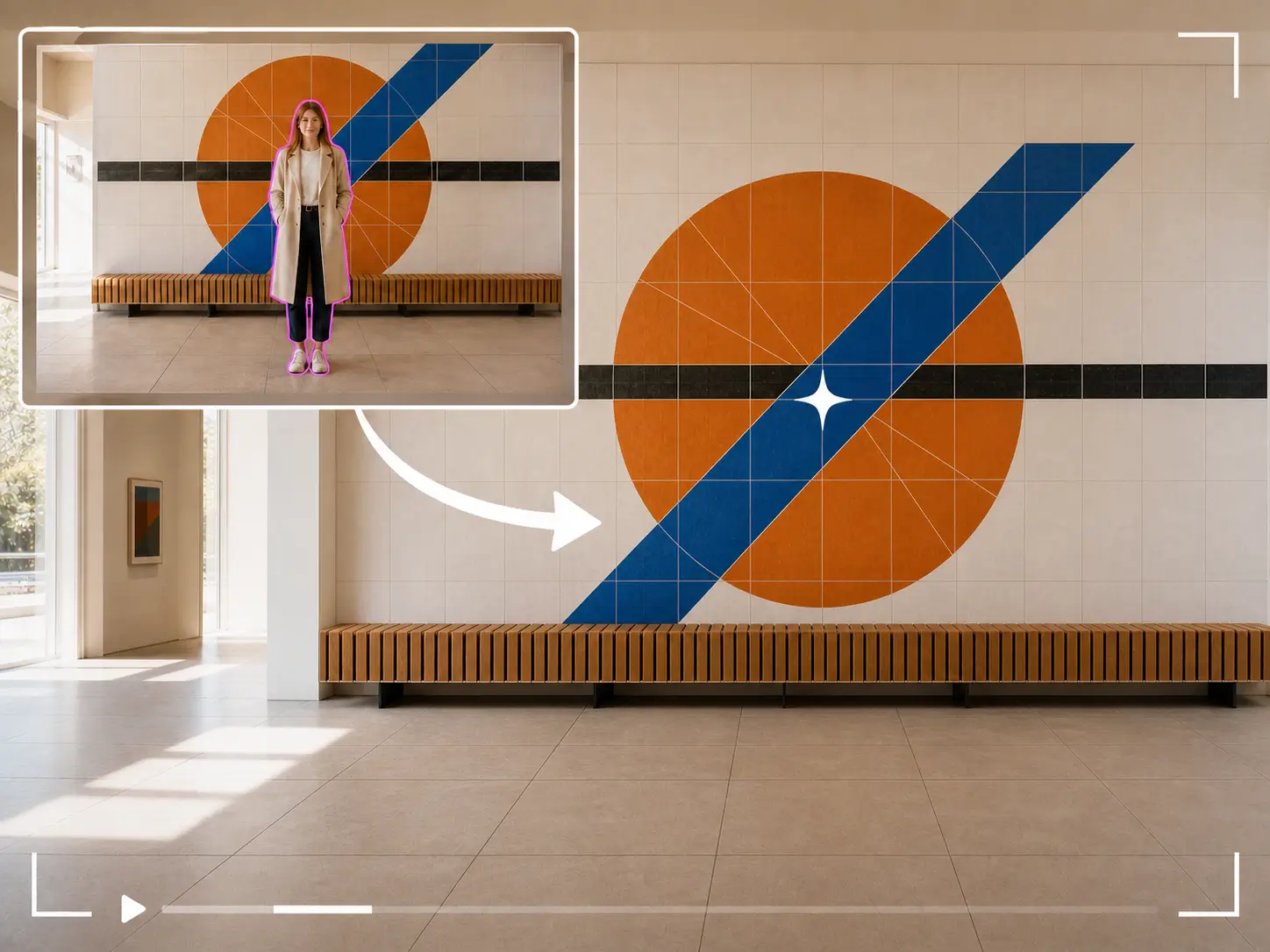
AI uses surrounding video frames and visible scene detail to reconstruct the area that was covered by the removed person.

  • Rebuild covered visual detail across the affected frames.
  • Blend the cleaned area back into the surrounding scene.
Source video inset shows a selected woman blocking an orange-and-blue tile mural and bench while the clean result reconstructs the hidden pattern and scene lines

Keep the Original Composition

Remove the target inside the existing frame while preserving the main subject, nearby people, and the composition you intended to keep.

  • Preserve the original video width, height, and framing.
  • Avoid cropping the shot or leaving a fixed blur patch.
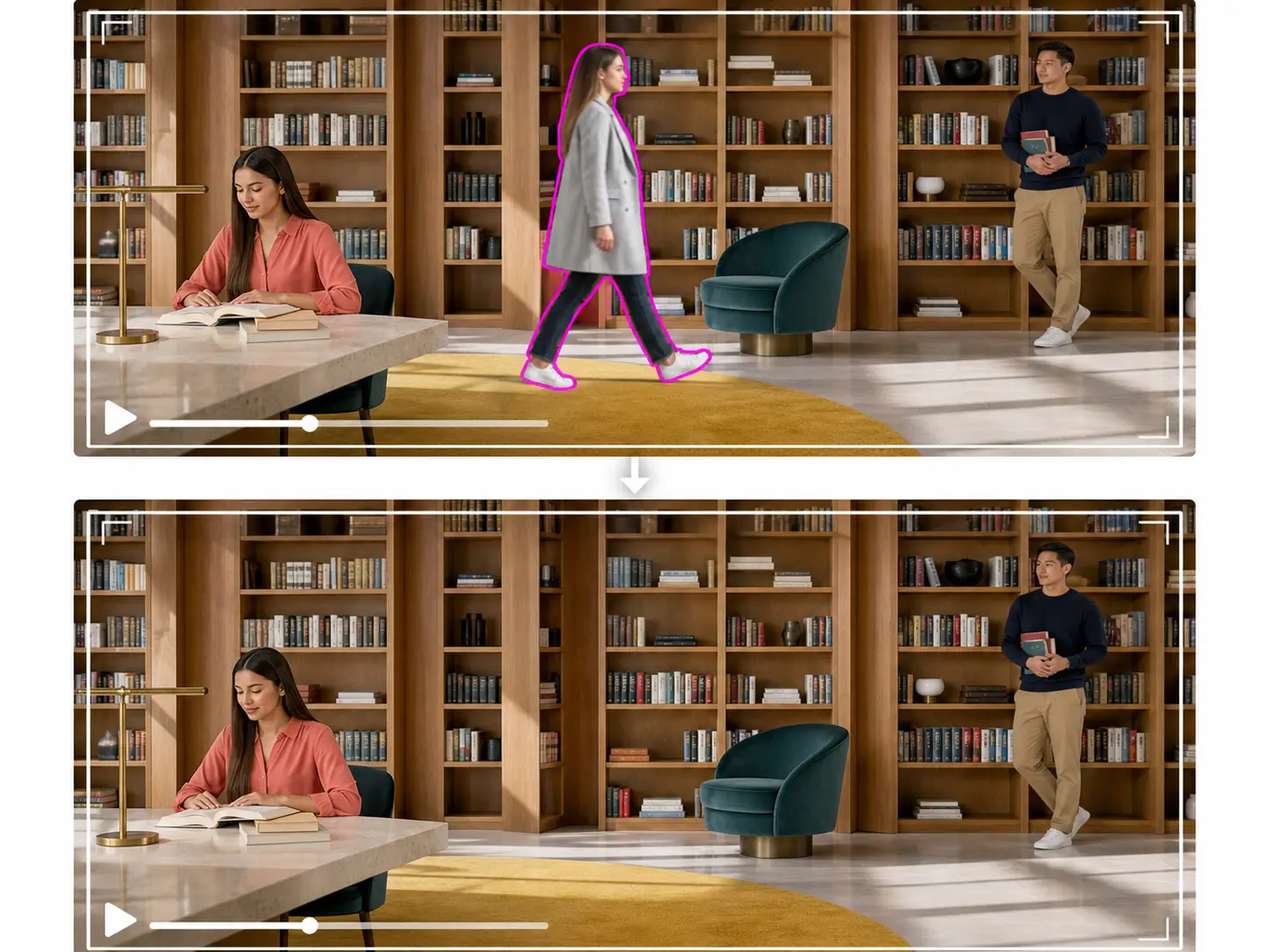
Equal-frame library comparison removes only the woman in the silver-gray coat while preserving the seated reader, standing man, furniture, and original framing

People You Can Remove

What People Can You Remove From Video?

From a passerby behind your subject to a photobomber or one person in a group, target the person that distracts from the shot while keeping the rest of the scene.

Background People
Remove someone standing or walking behind the main subject without clearing the foreground or the rest of the scene.
Passersby and Tourists
Clean a passerby or tourist from travel clips, landmarks, beaches, streets, events, and other public scenes.
Photobombers
Erase someone who enters the frame at the wrong moment and pulls attention away from the subject you meant to capture.
A Specific Person in a Group
Remove one selected person from a group scene while keeping the other people and surrounding context.

Four-Step Workflow

How to Remove a Person From Video

Choose the target person, review AI tracking, then remove the person and download the cleaned video.

01
Upload Your Video
Choose an MP4, MOV, or WEBM clip containing the person you want to remove.
02
Select the Person
Click the person on a clear frame or describe the target by clothing, position, appearance, or movement.
03
Review the Tracked Area
Check that AI follows the correct person across the clip and refine the target when needed.
04
Remove and Download
Run the final removal, review the reconstructed scene, and download the cleaned video.

Common Use Cases

Remove Unwanted People Without Reshooting the Video

When the framing, timing, and main subject already work, remove the distracting person instead of trying to recreate the entire shot.

Travel and Street Videos
Remove a tourist or passerby from a landmark, beach, street, or scenic shot when the timing and composition are otherwise right.
Creator and Social Videos
Remove a background stranger or photobomber from vlogs, Reels, Shorts, interviews, and lifestyle clips before publishing.
Real Estate and Property Videos
Remove a person left in a room, hallway, window, garden, or walkthrough so the property stays the focus.
Product and Marketing Videos
Remove staff, crew, customers, or other background people who distract from the product, presenter, venue, or intended brand scene.

FAQ

Remove Person From Video FAQ

Answers about selecting one person, keeping nearby people, tracking motion, rebuilding the background, supported formats, and free credits.

Remove a Person From Your Video

Choose the person you want gone and let AI track the target, remove them, and rebuild the hidden scene while keeping the rest of the shot intact.