Brand Logos and Product Marks
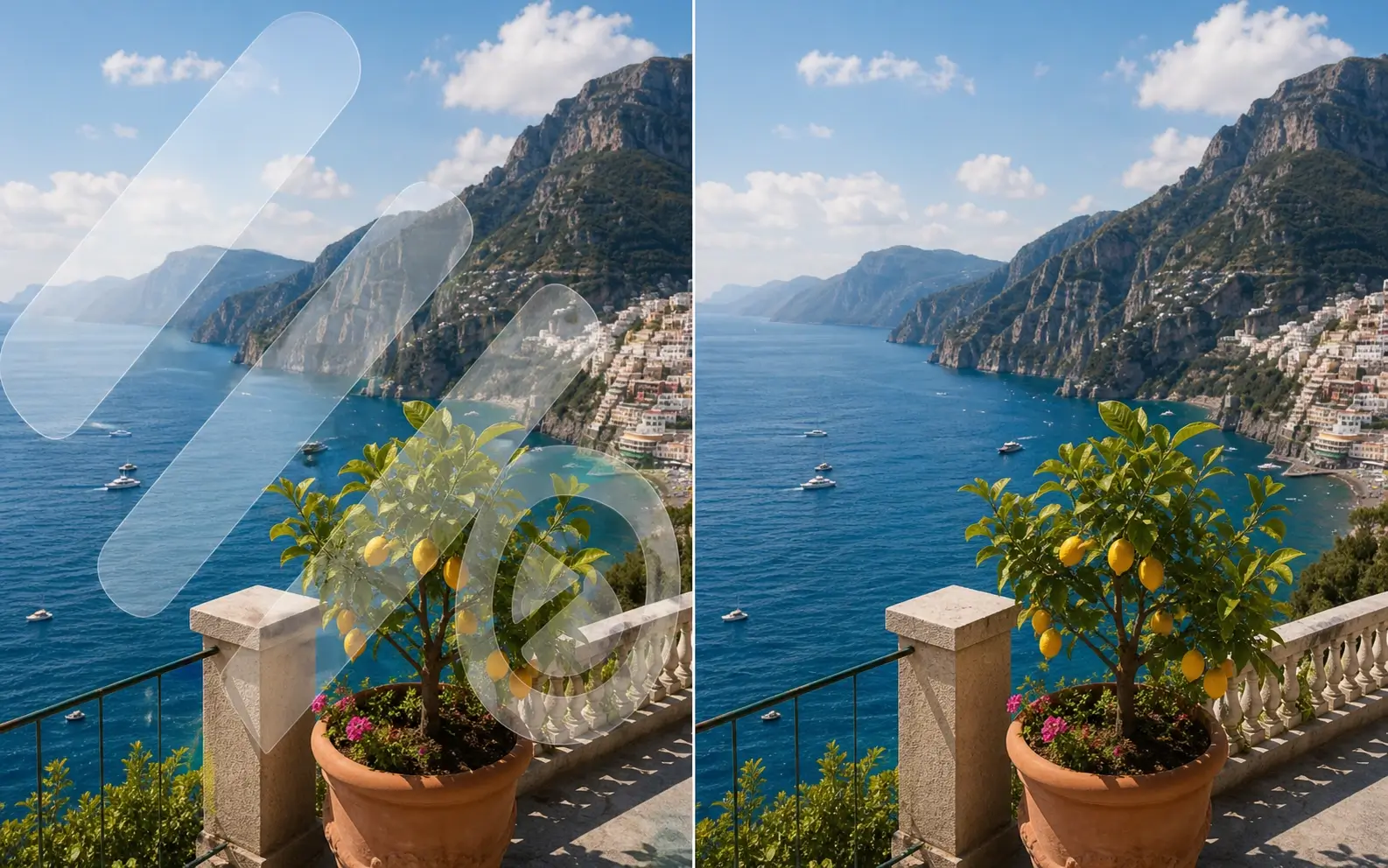
Remove an outdated company logo, product mark, or branded graphic from your own marketing videos before adding the updated version.
Remove a Brand Logo
AI Video Logo Remover
Remove brand logos, channel icons, corner badges, and visible video marks with AI. The tool cleans the marked area and blends it with surrounding visual details for a clean, natural result.
Upload a video to remove its logo
Supports MP4, MOV, WEBM
Only upload videos you own or have permission to edit.
Draw one or more boxes over the exact logo areas you want to remove.
Logo Types
Remove brand logos, channel icons, export marks, and visible AI video stamps from footage you own or have permission to edit. Fixed logos usually produce the most consistent results.
Remove an outdated company logo, product mark, or branded graphic from your own marketing videos before adding the updated version.
Remove a Brand LogoClean a fixed channel icon, corner logo, or small badge on the screen without cropping the entire frame.
Remove a Corner Logo
Erase a visible export mark or screen recorder badge that was accidentally embedded in your own tutorial, demo, or presentation.
Remove an Export Badge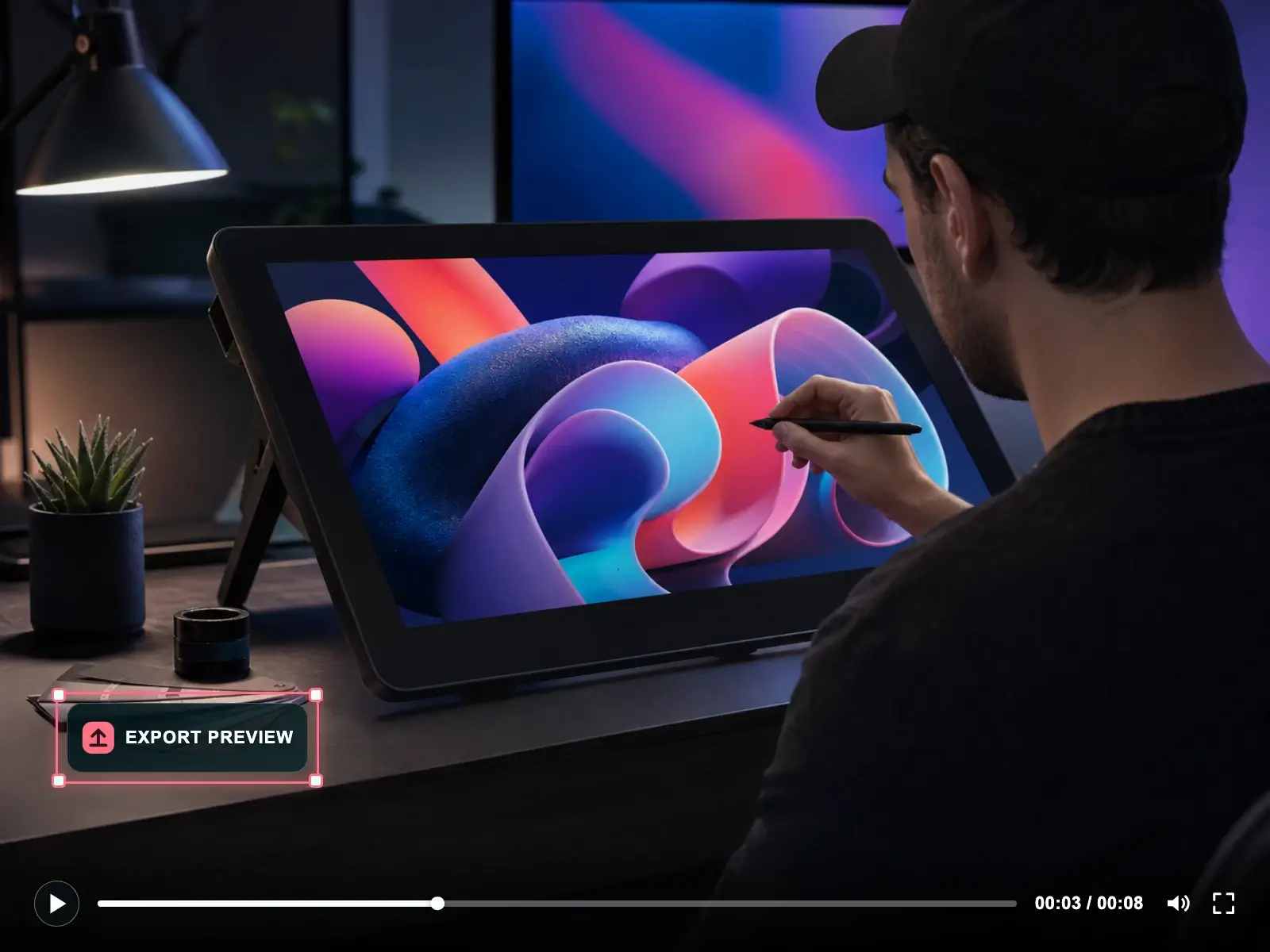
Clean a visible generation logo, model badge, or export stamp from a video created with AI that you are authorized to modify.
Remove an AI Video Logo
Live Removal Demos
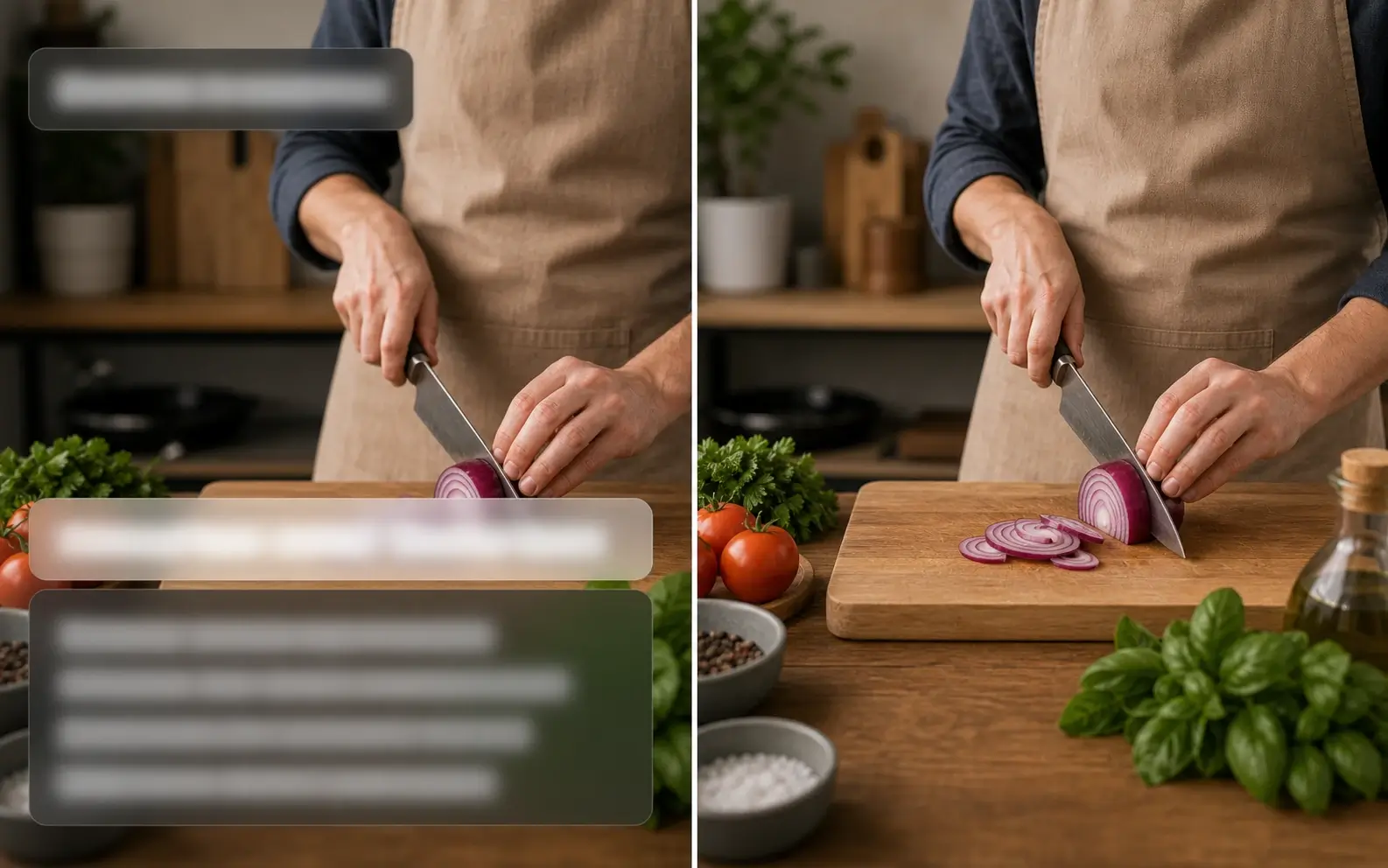
See how fixed logos in different positions are selected, removed, and replaced with a clean video frame.
Four Simple Steps
Upload your video, select the logo area, and let AI clean the marked region online.
AI Logo Removal
Target only the unwanted logo area without cropping the frame or changing the original composition.
Logo Position and Motion
Use precise area selection for fixed, multiple, large, and moving logos. Keep each selection close to the logo so AI processing stays focused on the marked region throughout the video.
Common Uses
Clean visible logos from videos you own, manage, or are authorized to update.
FAQ
Find answers about Remove Logo From Video, supported logo types, result quality, formats, devices, free use, and responsible editing.
Related Video Tools
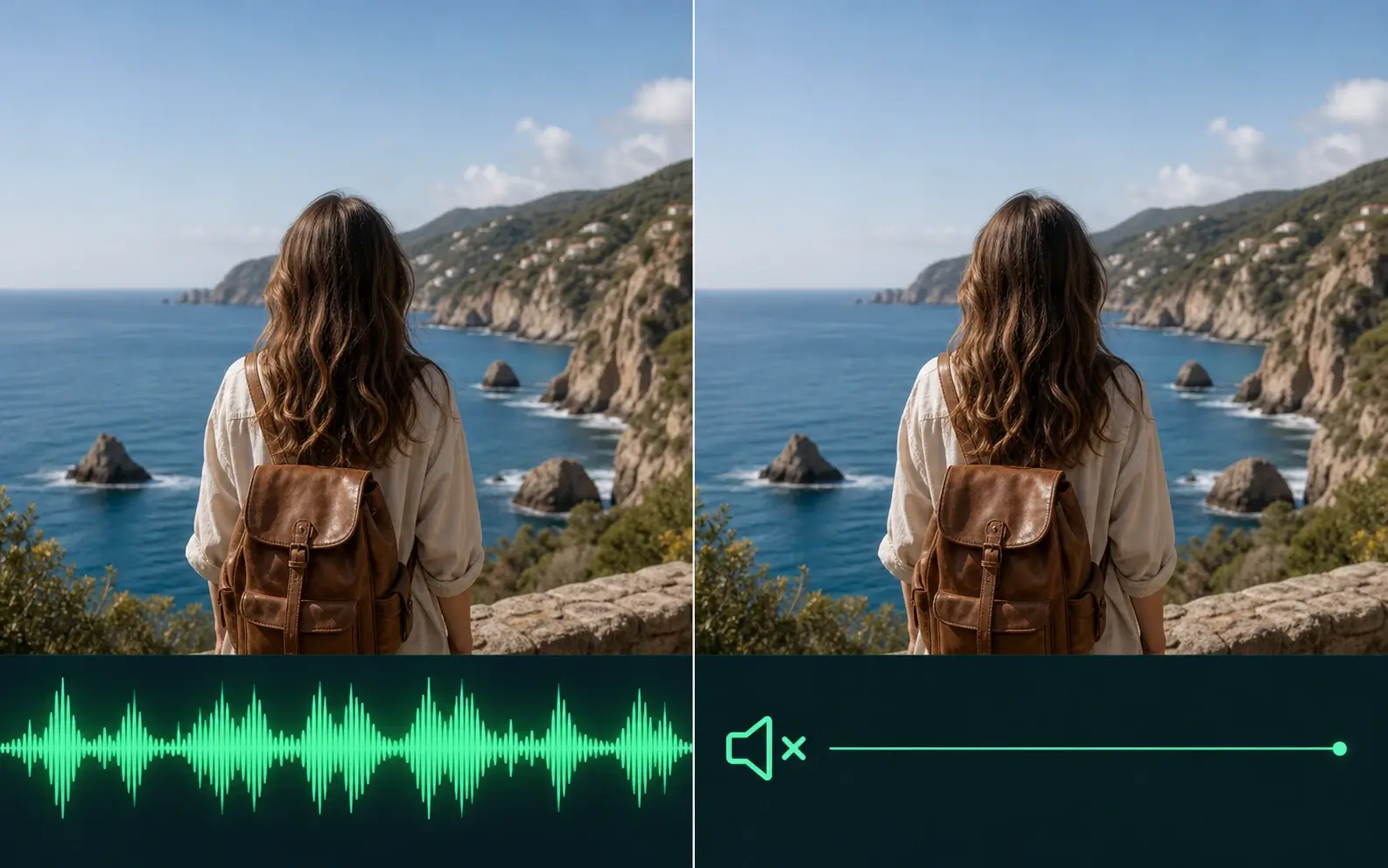
Use a dedicated workflow for watermarks, text, backgrounds, or audio.
Upload your video, mark the logo area, and preview the clean result before download.