
How to Make a Video Background Transparent
Make a video background transparent with AI. Choose WebM or MOV output, keep the subject and audio, and verify the cutout before using it in another scene.
On this page
To make a video background transparent, you need two things: a foreground cutout and an export that retains its transparency. Removing a scene and then exporting an opaque file does not produce a reusable transparent asset.
The video background remover separates your subject from the original scene. Choose Transparent output to create an asset you can place over other backgrounds in a compatible editor.
In RemoveFrom.Video, choose Transparent and either WebM or MOV before you start processing. Keep a reusable alpha version rather than flattening the subject onto a solid backdrop.
What transparency should look like
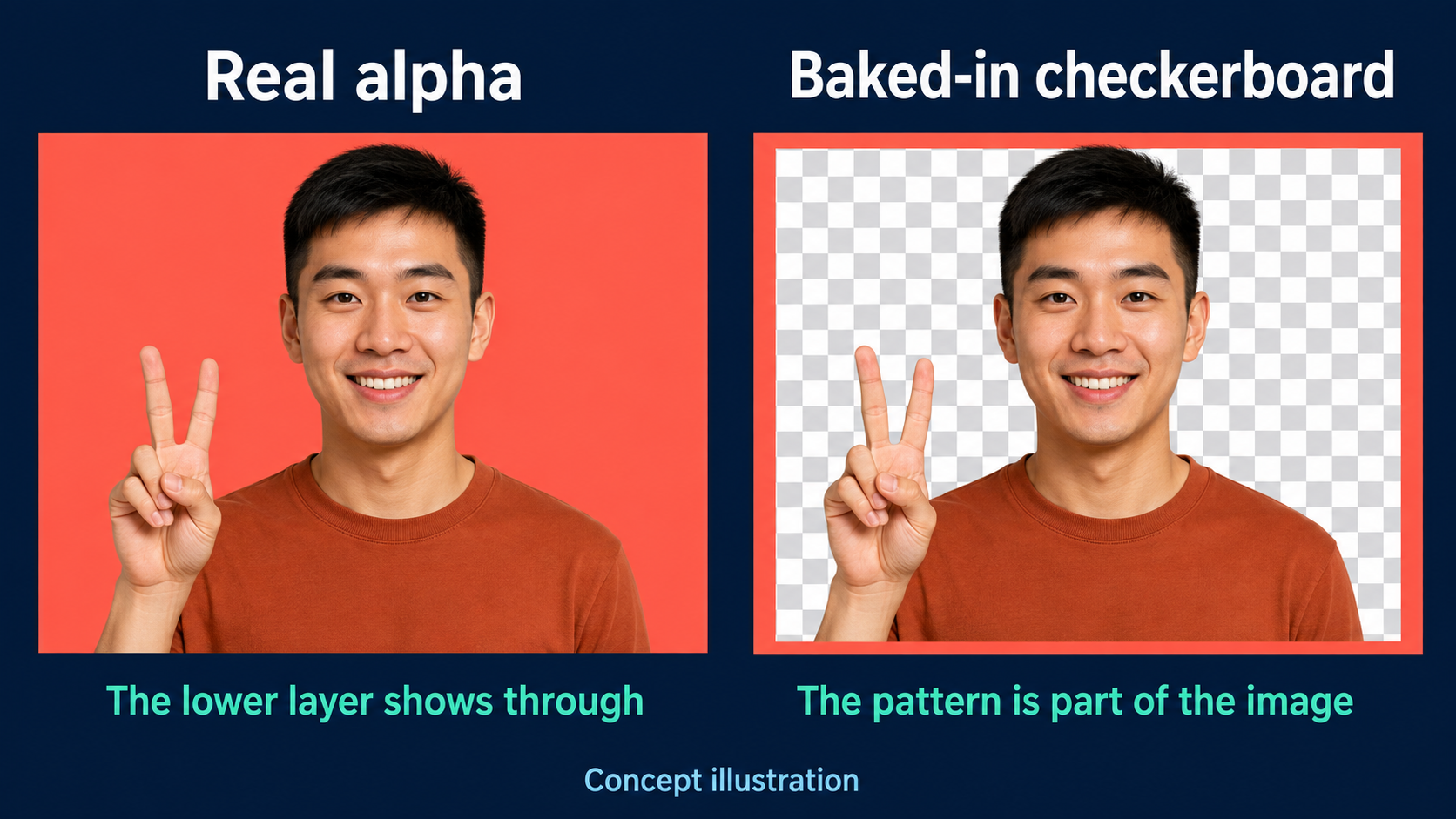
An alpha channel describes which parts of a frame are visible. Fully transparent areas reveal the layer underneath; partially transparent edges allow a softer transition around the subject.
A checkerboard is an editor's visualization of empty space. It is not a background you should bake into a final video. The most useful test is to put a visibly different layer behind the downloaded result and see whether it shows through.
How to make a video background transparent in RemoveFrom.Video
Choose your source
Open the background removal tool and select the original video. Include a short section with real motion when testing. You do not need green-screen footage; the no-green-screen guide explains that distinction.
Set Transparent before processing
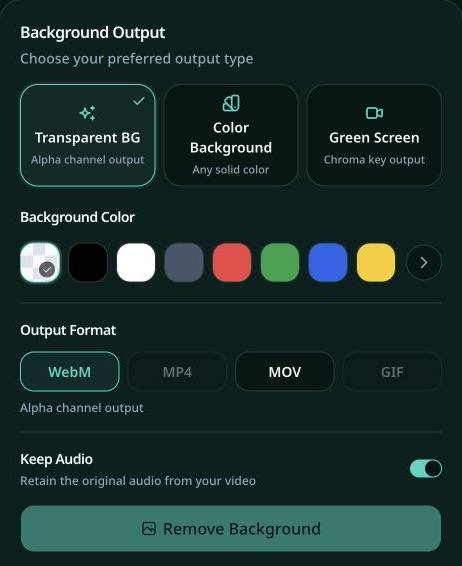
In the background output settings, choose Transparent. Do not choose a preset color when you need alpha: a solid-color result is deliberately opaque.
Choose WebM or MOV and check audio
The tool allows WebM and MOV for transparent output. MP4 and GIF are disabled for this mode. Keep audio enabled when you need the source sound, then check the sign-in and credit requirements before starting the job.
These are the tool's current format choices, not a guarantee that every program can interpret every download. In particular, the MOV label alone does not identify its codec. Test the exported file before adopting it as an editing intermediate.
Process and inspect the downloaded file
Start processing after setting the output. When it finishes, play the result and download it. Confirm the format you actually received rather than judging transparency only from an in-page preview.
To add a photo or moving background, import the transparent download into a compatible editor. Use a separate converter if you need a PNG sequence.
Verify alpha with a two-background test
Use an editor or compositor that supports the downloaded file:
- Put the clip on an upper video layer.
- Add a pale background below it.
- Replace that background with a very dark one.
- Play through motion in both versions.
The removed region should reveal the lower layer in both tests. Look for bright fringes, dark outlines, disappearing fingers, and fragments of the old scene. Inspect actual playback before zooming into individual frames.
A result that works over a checkerboard but fails in the destination application needs more investigation. The problem can be the decoder or alpha interpretation, not necessarily the cutout itself.
Try it yourself: download the transparent WebM sample and import it into a compatible editor. This generated 8-second sample has no audio. Put a light layer beneath it, then switch to a dark layer. Both the open center and the translucent orbit should reveal the lower layer. Use your own processed download for the same test before accepting a result.
Choose the destination before converting formats
| Destination | Recommended decision |
|---|---|
| A website overlay | Test the transparent WebM in the target browsers and devices |
| An editing project | Test the MOV import and confirm its codec and alpha behavior |
| A social post that requires MP4 | Compose the final background in an editor, then export the opaque video |
| A frame-by-frame image workflow | Use a separate editor or converter that explicitly preserves alpha |
Chrome documents WebM alpha playback. That does not establish support in every browser. A website should test its actual devices, especially when its audience includes different operating systems.
If the transparent video appears black
A black preview alone is not proof that the export is broken. Try the same file in an alpha-aware compositor over a colored lower layer.
If the subject reveals the lower layer there, the first player was displaying transparency differently. If no lower layer shows through, check whether a solid background was selected, whether the file was converted to an opaque format, or whether that application can decode its alpha.
If the file contains a baked-in checkerboard, the checkerboard is now picture content, not transparency. Re-export from a genuine transparent source.
Preserve the reusable master
Keep the first usable transparent export. Create the final social-media or website delivery file from that master rather than passing the same clip through several unrelated converters.
For websites, reduce the dimensions and duration to what the layout needs, then test the optimized result again. Smaller files help delivery, but a conversion that removes alpha defeats the purpose.
For editors, confirm the imported duration, orientation, audio, and alpha before building a long composition around the asset.
Common questions
Can CSS make a black video background transparent?
Not by setting the background of the video element. If black pixels are already part of the video, a transparent HTML/CSS background behind the element cannot remove them. The video needs a usable cutout or a deliberate keying workflow.
Can I just rename MP4 to WebM?
No. Changing a filename does not re-encode the video or create alpha information. Select the correct output before processing, or use a converter that supports the existing alpha data.
Should I create green-screen output instead?
Only when the destination specifically expects chroma key. Alpha avoids the additional color-removal step. A digital green screen can be useful for compatibility, but it is a different deliverable.